
What is VideoToWords AI?
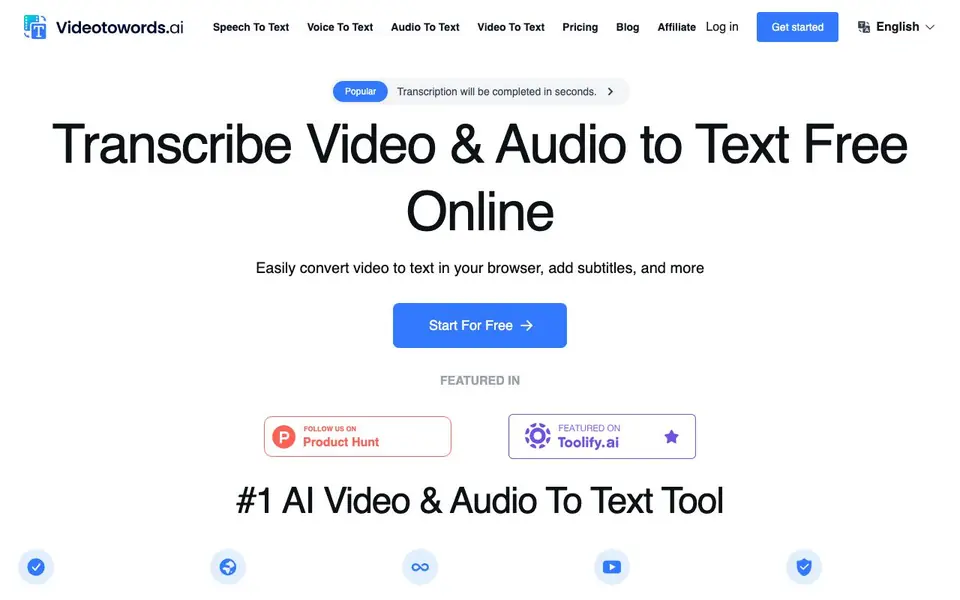
VideoToWords AI is an online transcription service that turns spoken content from videos and audio files into written text. It supports over 98 languages and claims high accuracy, making it useful for students, journalists, researchers, and content creators who need quick transcripts.
You start by uploading a file in common formats like MP3, WAV, MP4, or AVI. The AI then transcribes automatically, and you can edit the text in the built-in editor. After that, you can export the transcript as TXT, DOCX, or SRT files for subtitles.
The tool also offers features like speaker recognition, AI-generated summaries, and support for long files up to 10 hours. It emphasizes privacy and security, and there is a free tier to get started, with paid plans for unlimited transcription.
VideoToWords AI features
- High Accuracy: Claims 99.9% precise text output for reliable transcripts.
- Multilingual Support: Transcribes audio and video in 98+ languages.
- Long File Handling: Upload files up to 10 hours long or 5 GB each.
- AI Summaries: Generates quick insights from your content automatically.
- Export Options: Download transcripts as DOCX, PDF, TXT, or subtitle files (SRT, VTT).
What you can do with VideoToWords AI
- Transcribe interviews for journalism and news reporting.
- Convert lecture recordings into study notes for students.
- Generate subtitles for films and videos to improve accessibility.
- Turn podcast episodes into blog posts or social media content.
How to get started with VideoToWords AI
- Upload a video or audio file and select the language.
- Let the AI transcribe automatically after upload.
- Edit the transcript online and export it in your preferred format.
Tips for better results with VideoToWords AI
- Upload files in MP3 or WAV format for faster processing, as these are simpler for the AI to transcribe accurately than video formats.
- Use VideoToWords AI's built-in editor to correct any misheard words or names, especially in technical or niche content, before exporting.
- For long recordings, break them into shorter segments under 10 hours to avoid upload failures and make editing more manageable.
- Choose the SRT export option in VideoToWords AI when you need subtitles, and review the timestamps to ensure they align with your video.
- checks
VideoToWords AI pricing
VideoToWords AI has a free way to start, with paid plans for heavier use. Check videotowords.ai for current limits and prices.
What to check before you rely on VideoToWords AI
- Check the free tier's transcription limits, as the website does not specify how many minutes or files you can process without paying.
- Verify whether the 99.9% accuracy claim holds for your audio quality, since background noise or heavy accents may reduce accuracy.
- Confirm that your file size stays within the 5 GB limit, as the website states this for uploads, but does not list any other restrictions.
- Review the privacy policy to see how your uploaded files are stored and deleted, since the site emphasizes security but does not detail retention.
Who VideoToWords AI is for
VideoToWords AI suits journalists, students, podcast hosts and content creators. If that is not you, the AI transcription tools below may fit better.
Similar tools compared with VideoToWords AI
| Tool | What it is | Pricing |
|---|---|---|
| VideoToWords AI | AI speech-to-text and video transcription tool | Freemium |
| Otter.ai | AI meeting notetaker and transcription tool | Freemium |
| Fireflies.ai | AI meeting assistant for transcription and notes | Freemium |
| Fathom | AI notetaker for online meetings | Freemium |
| Turboscribe | Unlimited audio and video transcription | Freemium |
VideoToWords AI FAQ
What file formats does VideoToWords AI support?
It supports common formats like MP3, WAV, MP4, AVI, MPEG, M4A, and more. You can upload files up to 10 hours long or 5 GB each.
Is there a free plan?
Yes, the website mentions starting for free and offers a free tier. For unlimited transcription, there is a paid plan at $19.90.
Can I get subtitles from my videos?
Yes, you can export transcripts as SRT or VTT files, which are common subtitle formats, making it easy to add captions to your videos.
Who is this tool best for?
It's designed for journalists, students, podcast hosts, researchers, filmmakers, content creators, and marketers who need fast and accurate transcription.
Can VideoToWords AI export transcripts to PDF or VTT subtitle files?
VideoToWords AI lets you export transcripts as TXT, DOCX, and SRT files. The website also mentions PDF and VTT in its feature list, but the detailed export section only lists TXT, DOCX, and SRT. Check the export options inside the editor after transcription to see what's available.
Does VideoToWords AI work on mobile devices or only on desktop browsers?
VideoToWords AI is an online tool that runs in your browser, so you can use it on any device with a modern web browser, including smartphones and tablets. The website doesn't specify dedicated mobile apps, but the browser-based approach should work on mobile. For the best experience, use a stable internet connection.
What does the free plan of VideoToWords AI include, and are there any limits?
VideoToWords AI offers a free tier to get started, but the website doesn't detail exactly how many minutes or files you can transcribe for free. It mentions paid plans for unlimited transcription. To see the current free plan limits, check the pricing page or sign up and look at your account dashboard.


