

What is Turboscribe?
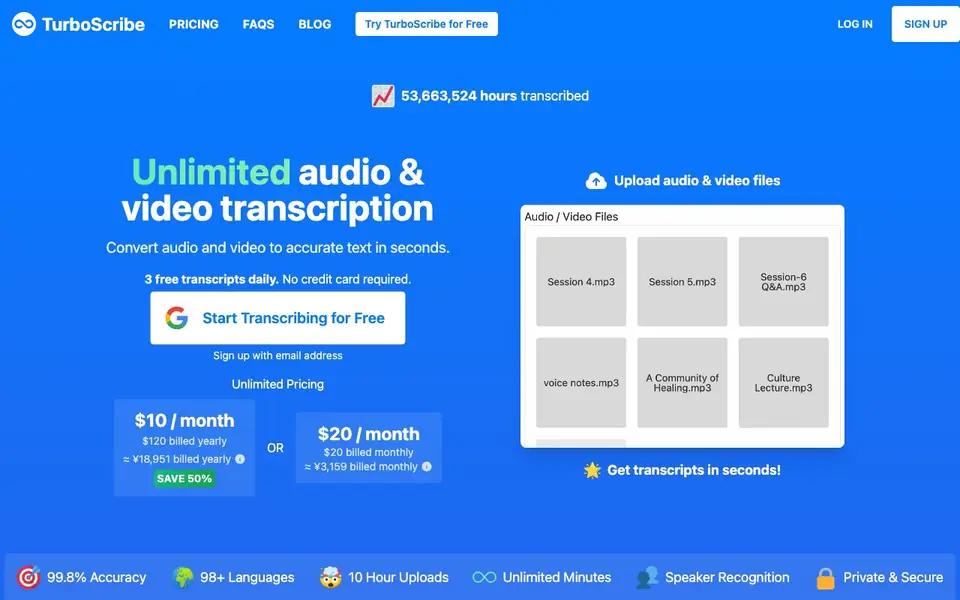
TurboScribe is an AI transcription service that turns audio and video files into text. It claims 99.8% accuracy and supports over 98 languages. You can upload files in common formats like MP3, MP4, M4A, MOV, and WAV, and get transcripts in seconds. It also offers speaker recognition, translation, and audio restoration features.
To use it, you sign up with your email, then upload a file by dragging and dropping or browsing. You choose the audio language and transcription mode—Cheetah for speed, Dolphin for balance, or Whale for maximum accuracy. You can enable speaker recognition or translate directly to English. The transcript is generated quickly, and you can download it as DOCX, PDF, TXT, or subtitle files like SRT and VTT.
TurboScribe suits journalists, podcasters, students, and professionals who need fast, reliable transcripts. The free plan gives you 3 transcripts daily, each up to 30 minutes long. The paid Unlimited plan costs $10 per month billed yearly, offering unlimited minutes, 10-hour uploads, and higher priority processing. The website does not mention any specific limits on the free plan beyond daily transcripts and upload size.
Turboscribe features
- 99.8% accuracy: Claims near-perfect transcription accuracy for your audio and video files.
- 98+ languages: Supports transcription in a wide range of spoken languages worldwide.
- Speaker recognition: Labels each section of the transcript with who is speaking, useful for meetings and interviews.
- Built-in translation: Translates transcripts or subtitles to 134+ languages, or transcribes speech directly to English.
- Multiple export formats: Download transcripts as DOCX, PDF, TXT, or subtitle files like SRT and VTT.
What you can do with Turboscribe
- Transcribe podcast episodes into text for show notes or blog posts.
- Convert interview recordings into searchable text documents for research.
- Generate subtitles for videos to make them accessible to a wider audience.
- Turn meeting recordings into written notes with speaker labels for easy review.
How to get started with Turboscribe
- Sign up with your email address on the TurboScribe website.
- Upload an audio or video file by dragging and dropping or browsing your device.
- Choose the audio language and transcription mode, then click Transcribe to get your text.
Tips for better results with Turboscribe
- Choose Whale mode for maximum accuracy on noisy or accented audio, and Cheetah when you need speed; TurboScribe lets you match the mode to your file.
- Enable speaker recognition before transcribing interviews or meetings so TurboScribe labels each speaker, making your transcript easier to scan and quote.
- Use the Restore Audio feature only on poor-quality recordings, since TurboScribe warns it can alter the original speech; test it on a short clip first.
- Upload files in MP3 or WAV format for best compatibility, and pick your audio language explicitly to help TurboScribe improve transcription accuracy.
Turboscribe pricing
Turboscribe has a free way to start, with paid plans for heavier use. Check turboscribe.ai for current limits and prices.
What to check before you rely on Turboscribe
- Verify your free plan's daily limit of 3 transcripts and 30-minute uploads; the website doesn't state if longer files are blocked or truncated.
- Confirm whether the $10 monthly price is available in your region, as the site shows a local currency estimate but not all payment methods.
- Check TurboScribe's privacy policy for how your uploaded audio is stored and deleted, since the site claims private and secure but gives no details.
Who Turboscribe is for
Turboscribe suits journalists, podcasters, students and researchers. If that is not you, the AI transcription tools below may fit better.
Similar tools compared with Turboscribe
| Tool | What it is | Pricing |
|---|---|---|
| Turboscribe | Unlimited audio and video transcription | Freemium |
| Otter.ai | AI meeting notetaker and transcription tool | Freemium |
| Fireflies.ai | AI meeting assistant for transcription and notes | Freemium |
| Fathom | AI notetaker for online meetings | Freemium |
| tl;dv | AI meeting notetaker for team collaboration | Freemium |
Turboscribe FAQ
Is TurboScribe free to use?
TurboScribe offers a free plan that gives you 3 transcripts every day, with each file up to 30 minutes long. For unlimited minutes and larger uploads, there is a paid plan at $10 per month billed yearly.
What file formats does TurboScribe support?
You can upload common audio and video formats including MP3, MP4, M4A, MOV, AAC, WAV, OGG, OPUS, MPEG, WMA, and WMV. The website also mentions YouTube as a supported format.
How accurate is TurboScribe?
TurboScribe claims 99.8% accuracy for its transcriptions. It is powered by Whisper, which the website describes as the most accurate speech-to-text technology available.
Can I get subtitles from TurboScribe?
Yes, you can download your transcripts as subtitle files in SRT and VTT formats. This is useful for adding captions to videos or creating subtitles for accessibility.
Does TurboScribe work on mobile devices or only on desktop?
TurboScribe is a web-based service, so you can use it on any device with a browser, including smartphones and tablets. The website does not mention dedicated mobile apps, but you can upload files and view transcripts directly from your mobile browser. Check the site for any platform-specific details.
What does the TurboScribe free plan include besides 3 daily transcripts?
The free TurboScribe plan gives you 3 transcripts per day, each up to 30 minutes long. You can use all core features like speaker recognition and translation. The website does not mention other limits, so you can test most functions without paying. For unlimited minutes and longer uploads, you would need the paid plan.
Can TurboScribe export transcripts directly to Google Docs or other cloud services?
TurboScribe lets you download transcripts as DOCX, PDF, TXT, SRT, or VTT files. The website does not mention direct integrations with Google Docs, Dropbox, or similar cloud services. You would need to download the file and upload it to your preferred platform manually. Check the site for any updates on integrations.


