
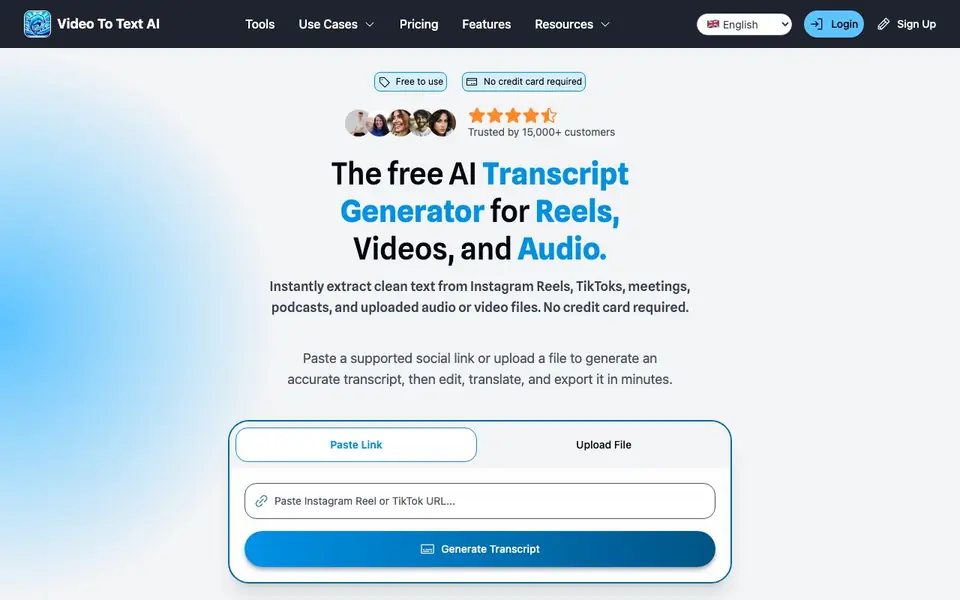
What is VideoToTextAI?
VideoToTextAI is a free AI transcript generator that works with social media links and uploaded files. You can paste an Instagram Reel or TikTok URL, or upload MP3, MP4, or MOV files, and get clean text in minutes. It is built for creators, podcasters, and teams who need quick, accurate transcripts without manual work.
To use it, you sign in, choose your source, and generate the transcript. Once ready, you can edit the text, translate it, use AI chat, and export as text, SRT, or VTT. The tool also helps you turn one transcript into LinkedIn posts, Instagram captions, X threads, and newsletters, so you can repurpose content across channels.
It suits social media managers, podcasters, meeting note-takers, and anyone who wants to turn spoken content into reusable text. The website mentions it is free to use with no credit card required and trusted by 15,000+ customers, but does not detail any paid plans or limits.
VideoToTextAI features
- Link transcription: Paste an Instagram Reel or TikTok URL to get a transcript without downloading the video.
- File upload: Upload MP3, MP4, MOV, or other audio and video files for transcription.
- Editing and translation: Refine the transcript text and translate it into other languages.
- Export options: Export your transcript as text, SRT, or VTT files.
- Content repurposing: Turn one transcript into social posts, threads, and newsletter copy.
What you can do with VideoToTextAI
- Transcribe Instagram Reels and TikTok videos for captions and quotes.
- Convert podcast episodes into show notes and social media posts.
- Turn meeting recordings into searchable notes for your team.
- Translate video content into multilingual summaries or subtitles.
How to get started with VideoToTextAI
- Sign in or create an account on VideoToTextAI to reach your dashboard.
- Paste a social link or upload an audio or video file from your computer.
- Generate the transcript, then edit, translate, or export it as text, SRT, or VTT.
Tips for better results with VideoToTextAI
- Paste a direct Instagram Reel or TikTok URL into VideoToTextAI rather than uploading a screen recording, since link transcription captures the original audio cleanly without re-encoding artifacts.
- After generating a transcript with VideoToTextAI, edit the text in the built-in editor before exporting, because fixing speaker names and punctuation there saves you time compared to cleaning up SRT or VTT files later.
- Use VideoToTextAI's content repurposing feature to turn one transcript into LinkedIn posts, Instagram captions, and X threads, but review each output for tone and accuracy before publishing since AI-generated social copy may need your voice.
- For meeting recordings, upload the MP3 or MP4 file directly to VideoToTextAI and then export as text to create searchable notes, but verify that the transcript captures technical terms correctly before sharing with your team.
VideoToTextAI pricing
VideoToTextAI has a free way to start, with paid plans for heavier use. Check videototextai.com for current limits and prices.
What to check before you rely on VideoToTextAI
- Check whether the free tier on VideoToTextAI has a limit on transcript length or number of files per day, since the website says 'free to use' but does not state any specific caps.
- Review the website's privacy policy to see how uploaded files and transcripts are stored or used, because the website does not mention data retention or deletion options.
- Confirm that VideoToTextAI supports the exact social platforms and file formats you need, since the site lists Instagram, TikTok, MOV, MP3, and MP4 but does not specify all supported sources or export formats beyond text, SRT, and VTT.
Who VideoToTextAI is for
VideoToTextAI suits content creators, podcasters, social media managers and teams. If that is not you, the AI transcription tools below may fit better.
Similar tools compared with VideoToTextAI
| Tool | What it is | Pricing |
|---|---|---|
| VideoToTextAI | AI transcript generator for videos and audio | Freemium |
| Otter.ai | AI meeting notetaker and transcription tool | Freemium |
| Fireflies.ai | AI meeting assistant for transcription and notes | Freemium |
| Fathom | AI notetaker for online meetings | Freemium |
| Turboscribe | Unlimited audio and video transcription | Freemium |
VideoToTextAI FAQ
Can I transcribe Instagram Reels or TikTok videos?
Yes. You can paste a link to an Instagram Reel or TikTok video, and VideoToTextAI will generate a transcript without needing to download the video first.
What file types can I upload?
You can upload MP3, MP4, MOV, and other audio or video files from your computer to get them transcribed.
Is VideoToTextAI free to use?
The website says it is free to use with no credit card required. It does not mention any paid plans or limits, so check the pricing page for details.
Can I translate my transcripts?
Yes. After generating a transcript, you can translate it into other languages and export it as text, SRT, or VTT files.
Can VideoToTextAI export transcripts in formats other than text, SRT, or VTT?
The VideoToTextAI website only mentions exporting transcripts as text, SRT, or VTT files. If you need a different format, check the tool's export options after generating a transcript, or contact support for the latest available formats.
Does VideoToTextAI work on mobile devices or only on desktop?
The VideoToTextAI website does not specify which devices or platforms it supports. Since it is a web-based tool, it likely works in any modern browser on a phone, tablet, or computer. For confirmation, try accessing the site from your device or check their FAQ or support page.
What does the free plan of VideoToTextAI include, and are there any limits?
VideoToTextAI is described as free to use with no credit card required, and the website does not mention any paid plans or usage limits. It likely includes all features like link transcription, file upload, editing, translation, and export. For specific limits, check the pricing page or contact support.


