
What is Transkriptor?
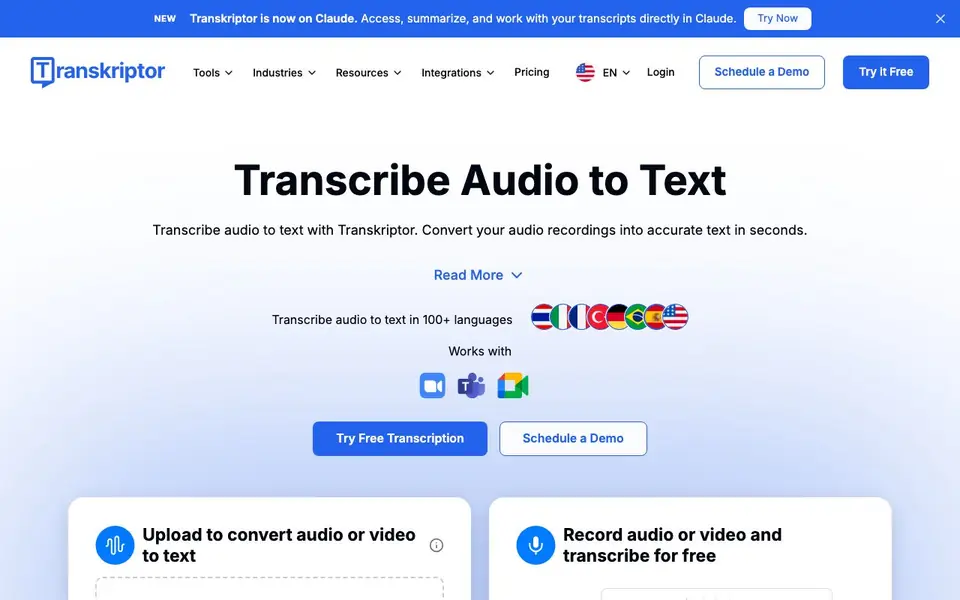
Transkriptor is an AI-powered transcription tool that turns audio and video recordings into accurate text in seconds. It supports over 100 languages and claims 99% accuracy. You can upload files like MP3, MP4, or WAV, or record directly within the app. The tool processes everything automatically, so you get a full editable transcript without manual note-taking.
After transcription, Transkriptor goes beyond simple text. It generates summaries, extracts action items, and analyzes call sentiment. The Ask Transkriptor feature lets you chat with your transcripts, asking questions and getting answers with cited sources from your meeting library. You can also create searchable knowledge bases from multiple transcripts or uploaded documents.
Transkriptor integrates with tools your team already uses, including CRM, project management, storage, calendar, videoconference, notes, and VoIP platforms. It also offers an API and MCP for custom workflows. The service is trusted by thousands of users, with high ratings on Trustpilot, Capterra, and G2. You can start with a free account and try transcription without cost.
Transkriptor features
- High accuracy transcription: Converts audio and video to text with 99% accuracy in over 100 languages.
- AI summaries and insights: Generates summaries, extracts action items, and analyzes call sentiment automatically.
- Ask Transkriptor chat: Lets you ask questions about your transcripts and get answers with cited sources.
- Searchable knowledge base: Creates searchable libraries from multiple transcripts or uploaded documents.
- Integrations and API: Connects with CRM, project management, storage, and videoconference tools, plus offers API access.
What you can do with Transkriptor
- Transcribe meeting recordings to capture every word and decision.
- Convert lecture or interview audio into editable text for notes.
- Search past meetings for specific topics, commitments, or quotes.
- Summarize long recordings to quickly grasp key points and action items.
How to get started with Transkriptor
- Create a free Transkriptor account on their website.
- Record audio or video directly, or upload a file like MP3, MP4, or WAV.
- Get your transcript, then use summaries, insights, and Ask Transkriptor to work with the content.
Tips for better results with Transkriptor
- Upload clear audio files in MP3, MP4, or WAV format to Transkriptor, and avoid background noise for the best transcription accuracy.
- Use Transkriptor's Ask feature to search across your meeting library for specific decisions or quotes, and verify the cited sources it provides.
- After transcribing, review the AI-generated summaries and action items in Transkriptor, and edit the text directly to correct any errors.
- Create a searchable knowledge base in Transkriptor by uploading multiple transcripts or documents, then ask questions across all of them at once.
Transkriptor pricing
Transkriptor has a free way to start, with paid plans for heavier use. Check transkriptor.com for current limits and prices.
What to check before you rely on Transkriptor
- Check the free plan's limits on upload duration or number of transcriptions, since the website does not state specific caps.
- Verify whether the 99% accuracy claim holds for your audio quality, especially with heavy accents or poor recordings, before relying on it.
- Confirm the export formats available in your plan, as the website mentions exporting but does not list all supported file types.
Who Transkriptor is for
Transkriptor suits professionals, meeting-heavy teams, researchers and students. If that is not you, the AI transcription tools below may fit better.
Similar tools compared with Transkriptor
| Tool | What it is | Pricing |
|---|---|---|
| Transkriptor | AI transcription and meeting insights tool | Freemium |
| Otter.ai | AI meeting notetaker and transcription tool | Freemium |
| Fireflies.ai | AI meeting assistant for transcription and notes | Freemium |
| Fathom | AI notetaker for online meetings | Freemium |
| Turboscribe | Unlimited audio and video transcription | Freemium |
Transkriptor FAQ
What file formats does Transkriptor support?
Transkriptor works with common audio and video formats, including MP3, MP4, and WAV. You can upload these files directly or record audio/video within the app to transcribe.
Is Transkriptor free to use?
Yes, Transkriptor offers a free account and lets you try transcription for free. There are also paid plans, but the website doesn't detail specific pricing tiers—check their Pricing page for options.
Can I search across multiple meetings?
Yes, the Ask Transkriptor feature searches every meeting transcript in your library. It finds decisions, action items, quotes, and answers with cited sources, so you don't have to re-listen to recordings.
What languages does Transkriptor support?
Transkriptor supports transcription in over 100 languages. This includes both the transcription itself and the Ask Transkriptor feature, which can search and answer across transcripts in those languages.
Can Transkriptor export transcripts to Word, PDF, or other formats?
Yes, Transkriptor lets you export transcripts to common formats like Word and PDF, as mentioned in user reviews. The website does not list every export option, so check the app's export menu after transcription to see all available formats.
Does Transkriptor work on mobile devices or only on desktop?
Transkriptor has over 5 million app downloads, which indicates it is available on mobile devices. The website does not specify which operating systems are supported, so check the app store for your device to confirm compatibility.
What does the free plan of Transkriptor include?
Transkriptor is freemium, and you can start with a free account to try transcription without cost. The website does not detail the free plan's limits, such as minutes or file size, so check the pricing page or sign up to see what is included.


