
What is Transcribe to Text?
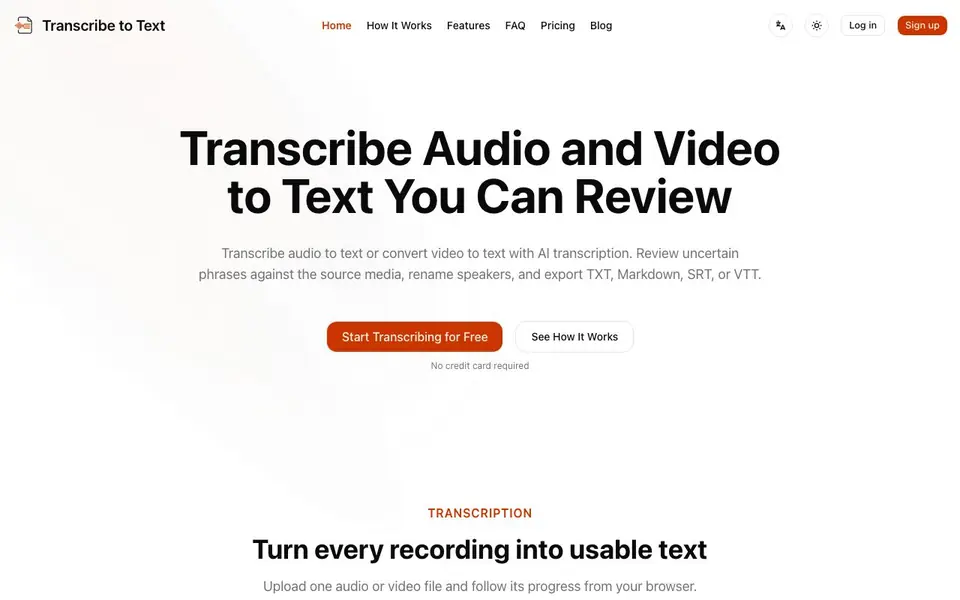
Transcribe to Text is an online tool that turns audio and video recordings into written text using AI. You upload a file, and the AI generates a transcript with timestamps and speaker labels when you enable them. The tool supports many audio and video formats, including MP3, WAV, M4A, and MP4, with files up to 5 GB.
You can guide the AI before transcription by choosing the spoken language or using automatic detection, identifying speakers, and adding context or key terms for names and specialist vocabulary. After the AI draft is ready, you review it using a low-confidence queue that plays the matching moment in the media. You edit segments, mark phrases as reviewed, and rename speakers. Corrections save as a new revision, and you can export the latest transcript as TXT, Markdown, SRT, or VTT.
This tool suits teams, journalists, researchers, creators, students, educators, editors, marketers, and sales or support teams. It works for meetings, interviews, podcasts, lectures, videos, and customer calls. The website mentions support for 99 languages and offers a free plan with 10 one-time credits after registration. Paid subscriptions provide 600 credits monthly for $14.99, and credits never expire.
Transcribe to Text features
- Language coverage: Transcribe speech in 99 languages with automatic detection when unsure.
- Speaker identification: Separate speakers for clearer meeting and interview transcripts.
- Low-confidence review: Review uncertain phrases and play the matching moment to edit.
- Context and key terms: Add context or key terms to improve recognition of specialist vocabulary.
- Export formats: Export transcripts as TXT, Markdown, SRT, or VTT files.
What you can do with Transcribe to Text
- Transcribe a meeting to create a written reference for decisions and follow-ups.
- Convert an interview recording into text for easier quoting and organization.
- Turn a podcast episode into show notes and an archive for accessibility.
- Generate captions from a video's dialogue for editing and content review.
How to get started with Transcribe to Text
- Sign up for a free account to receive 10 one-time credits.
- Upload an audio or video file and choose transcription settings like language and speaker identification.
- Review the AI draft using the low-confidence queue, edit segments, and export the final transcript.
Tips for better results with Transcribe to Text
- Add key terms and context before uploading to improve recognition of names and specialist vocabulary, especially in noisy or accented audio.
- Use the low-confidence review queue in Transcribe to Text to spot uncertain phrases, then play the matching moment to correct them accurately.
- Enable speaker identification for meetings or interviews so Transcribe to Text separates voices, making the transcript easier to follow and quote.
- Export your final transcript as SRT or VTT if you need captions, or Markdown for clean formatting in documents or notes.
- Save corrections as a new revision after editing so you keep a clean history and can re-export the latest version without losing changes.
Transcribe to Text pricing
Transcribe to Text has a free way to start, with paid plans for heavier use. Check transcribetotext.org for current limits and prices.
What to check before you rely on Transcribe to Text
- Check the free plan's 10 one-time credits before starting long projects, since the website does not state whether credits roll over or expire.
- Verify the file size limit of 5 GB and supported formats like MP3 or MP4 match your recordings before uploading.
- Confirm the website's privacy policy for how uploaded files are stored and deleted, as the website does not detail data retention practices.
Who Transcribe to Text is for
Transcribe to Text suits journalists, researchers, podcasters, students and marketers. If that is not you, the AI transcription tools below may fit better.
Similar tools compared with Transcribe to Text
| Tool | What it is | Pricing |
|---|---|---|
| Transcribe to Text | AI transcription with review and export | Freemium |
| Otter.ai | AI meeting notetaker and transcription tool | Freemium |
| Fireflies.ai | AI meeting assistant for transcription and notes | Freemium |
| Fathom | AI notetaker for online meetings | Freemium |
| Turboscribe | Unlimited audio and video transcription | Freemium |
Transcribe to Text FAQ
What file formats can I transcribe?
You can upload MP3, WAV, M4A, AAC, FLAC, OGG, or OPUS audio, and MP4 video. Files can be up to 5 GB in size.
Is there a free plan?
Yes, you get 10 one-time credits after registration, which covers 10 minutes of audio or video. No credit card is required to start.
How does the review process work?
After AI generates a draft, you use a low-confidence queue to see phrases the AI is unsure about. You can play the matching moment in the media, edit the text, and mark phrases as reviewed.
Can I export subtitles?
Yes, you can export transcripts as SRT or VTT files, which are common subtitle formats. You can also export as TXT or Markdown.
Does Transcribe to Text work on my phone or tablet?
Transcribe to Text is a browser-based tool, so you can use it on any device with a modern web browser, including phones and tablets. The website does not mention dedicated mobile apps, but you can upload files and review transcripts directly from your device's browser.
What can I do with the free plan on Transcribe to Text?
With Transcribe to Text's free plan, you get 10 one-time credits after registration. Each credit likely lets you transcribe one file, but the website does not specify the exact file size or duration limits for free credits. Check the pricing page for details on what each credit covers.
Can Transcribe to Text connect to cloud storage like Google Drive or Dropbox?
The Transcribe to Text website does not mention any direct integrations with cloud storage services. You upload files from your device, and the tool processes them in your browser. For cloud files, you would need to download them locally first and then upload them to Transcribe to Text.


