

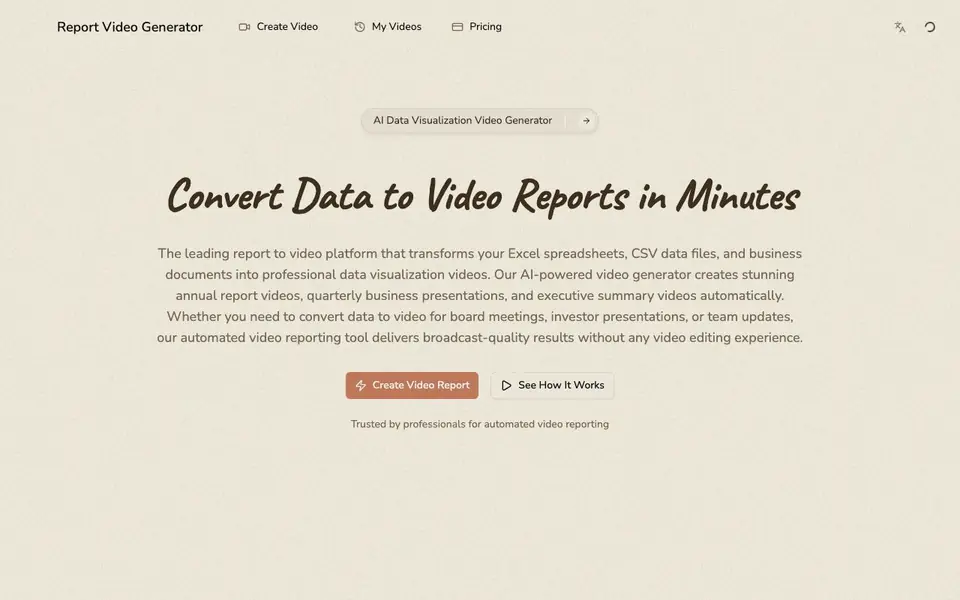
What is Report Video Generator?
Report Video Generator is an AI-powered platform that converts your spreadsheet and document data into professional video reports. It handles Excel, CSV, JSON, Word, PowerPoint, PDF, and TXT files, turning raw numbers into animated charts, dynamic graphs, and cinematic visuals with AI voice narration.
You start by uploading your data file or using a starting point template like Annual Report or Sales Performance. You then describe what the video should communicate, choose between quick or creative generation, pick a visual style, format, target length, and sound option. The AI analyzes your data, selects chart types, writes narration, and renders a 1080p video in minutes.
This tool suits business professionals creating annual reports, financial summaries, sales reviews, or executive briefings. It requires no video editing experience. The website mentions a 10 MB per report limit and 50 MB total including reference files, but does not state pricing details.
Report Video Generator features
- Excel to video conversion: Upload.xlsx or.xls files and get animated charts and graphs automatically.
- AI data analysis: Identifies key trends and metrics to determine the best way to visualize your data.
- Voice narration: Adds AI-generated narration to your video, with an option for music only.
- Multiple file formats: Accepts Excel, CSV, JSON, Word, PowerPoint, PDF, and TXT files.
- Template starting points: Use pre-built templates like Annual Report or Sales Performance to begin quickly.
What you can do with Report Video Generator
- Create annual report videos from spreadsheet data automatically.
- Turn sales performance data into a narrated video for team updates.
- Generate financial summary videos for investor presentations.
- Convert marketing analytics into a visual video for board meetings.
How to get started with Report Video Generator
- Upload your data file (Excel, CSV, JSON, Word, PowerPoint, PDF, or TXT) or choose a starting point template.
- Describe what the video should communicate and select generation mode, visual style, format, length, and sound.
- Let the AI analyze, visualize, and render your video, then review it in your video library.
Tips for better results with Report Video Generator
- Upload a clean spreadsheet with clear column headers and consistent data types so Report Video Generator can identify trends and pick the right chart types accurately.
- Describe the key message you want the video to communicate in the prompt field, keeping it under 2000 characters, to guide Report Video Generator's narration and visual choices.
- Use a starting point template like Annual Report or Sales Performance to speed up setup, then adjust the visual style and target length to match your audience.
- Keep your total file size under 50 MB and each report under 10 MB, combining reference files wisely, to avoid upload failures with Report Video Generator.
Report Video Generator pricing
Report Video Generator’s homepage does not list prices. Check reporttovideo.com for current plans.
What to check before you rely on Report Video Generator
- Check whether the free plan or trial exists, since the website does not state pricing details or any limits on video length or number of videos.
- Verify your data file format is supported, like Excel, CSV, or PDF, and that it contains text-based data, as the tool may not handle scanned or image-only files.
- Review the export options and resolution, which are listed as 1080p, but confirm if you can download the video in other formats or edit it after generation.
Who Report Video Generator is for
Report Video Generator suits business professionals, financial analysts, HR teams and marketing managers. If that is not you, the AI video generators below may fit better.
Similar tools compared with Report Video Generator
| Tool | What it is | Pricing |
|---|---|---|
| Report Video Generator | AI data-to-video report generator | See website |
| SiVideoGen | AI video generator with multiple models | Freemium |
| FreeSiTools | Free AI image prompt generator | Free |
| SiVideoAPI | Unified API for top AI video models | Freemium |
| Runway | AI video, image, and audio creation suite | Freemium |
Report Video Generator FAQ
What file formats can I upload?
You can upload PDF (text), Excel, CSV, JSON, Word, PowerPoint, and TXT files. Each report has a 10 MB limit, with a 50 MB total including reference files.
Can I choose the video length and format?
Yes. You can select landscape 16:9 or portrait 9:16 format, and target lengths of 20, 30, or 60 seconds. The final length may adjust slightly to fit narration naturally.
Does the video include voice narration?
Yes, you can choose voice narration or music only. The AI writes the narration based on your data and the description you provide.
What is the pricing?
The website does not state pricing details. You can check the Pricing page on the site for current plans and costs.
Can Report Video Generator export the final video in formats other than 1080p?
The Report Video Generator website mentions that it renders 1080p HD videos, but it does not specify other export formats like MP4, MOV, or AVI. For details on available export options, check the tool's interface or contact their support team.
Does Report Video Generator work on mobile devices or tablets?
The Report Video Generator website does not mention specific device compatibility or dedicated mobile apps. You can likely access it through a web browser on any device, but for a definitive answer, check the site's help section or contact their support.
What does the free plan of Report Video Generator include?
The Report Video Generator website does not state whether it offers a free plan or what it would include. It only mentions a 10 MB per report limit and 50 MB total for files. For pricing or trial details, visit the Pricing page on the site.


