
What is Wisecut?
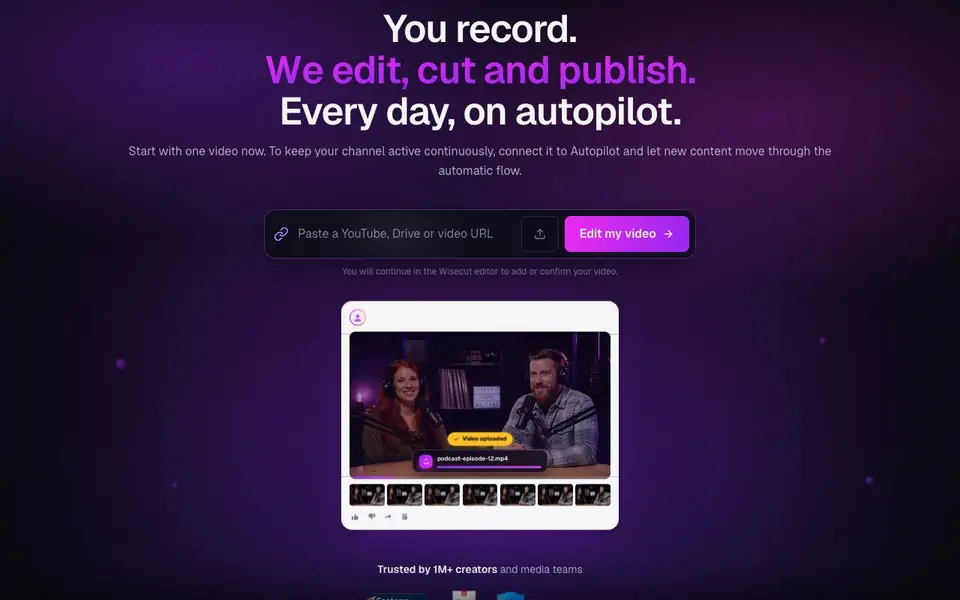
Wisecut is an AI video editor built for turning podcasts, YouTube videos, and webinars into short vertical clips. It handles the busywork: cutting silences, adding captions, reframing to 9:16, and picking highlights. You upload a video, and Wisecut prepares ready-to-post clips.
You start by uploading a video or connecting a channel. Wisecut's AI detects highlights, removes silences, and adds styled subtitles. You can review edits in a storyboard without a timeline. The Wish feature lets you describe the result you want, and Wisecut plans cuts, reframes, captions, and music for you to approve.
Autopilot connects your channel so every new video becomes clips that are automatically scheduled and published. Social Hub organizes all your posts in one calendar for YouTube Shorts, Instagram Reels, TikTok, and Facebook Reels. Wisecut suits creators and media teams who publish weekly and want to keep a consistent presence without manual editing.
Wisecut features
- Autopilot: Connects your channel and automatically turns new videos into scheduled clips.
- Wish prompt editing: Describes your desired edit and Wisecut plans cuts, reframes, captions, and music.
- Auto reframe: Adjusts videos to vertical, square, or widescreen formats in one click.
- Auto captions: Generates accurate subtitles automatically to improve accessibility and engagement.
- Thumbnail creation: Picks the best frame and builds a click-ready thumbnail in seconds.
What you can do with Wisecut
- Turn a podcast episode into multiple vertical clips for social media.
- Automate publishing of YouTube videos to Shorts, Reels, and TikTok.
- Remove silences and repeated takes from raw recordings.
- Generate captioned highlights from a webinar or live stream.
How to get started with Wisecut
- Upload a video or connect your channel to Wisecut.
- Review the AI-generated clips, captions, and reframing in the editor.
- Schedule and publish clips to your social channels from Social Hub.
Tips for better results with Wisecut
- Upload a full podcast or webinar recording to Wisecut, then use the Wish prompt to specify exactly how many clips and what aspect ratio you want for each platform.
- Connect your YouTube channel to Wisecut's Autopilot so every new video automatically becomes scheduled Shorts, Reels, and TikToks without manual uploads.
- Review the storyboard after Wisecut removes silences and adds captions, then adjust any clip's length or framing before you approve the final cuts.
- Use Wisecut's thumbnail feature to generate click-ready images from your best frames, saving you from opening a separate image editor for each post.
Wisecut pricing
Wisecut’s homepage does not list prices. Check wisecut.ai for current plans.
What to check before you rely on Wisecut
- Check the pricing page on wisecut.ai because the website does not list any plan costs, free trial limits, or subscription details.
- Verify which video formats and file sizes Wisecut accepts before uploading, since the site does not state supported codecs or maximum upload duration.
- Confirm how Autopilot handles your channel's publishing permissions and whether it posts publicly or as drafts, as the website does not specify these settings.
Who Wisecut is for
Wisecut suits podcasters, YouTube creators, social media managers and media teams. If that is not you, the AI video editors below may fit better.
Similar tools compared with Wisecut
| Tool | What it is | Pricing |
|---|---|---|
| Wisecut | AI video editor for podcasts and clips | See website |
| SiVideoGen | AI video generator with multiple models | Freemium |
| Descript | AI video and audio text-based editor | Freemium |
| InVideo | Agentic AI video editor and maker | Freemium |
| VEED | AI video creation and editing platform | See website |
Wisecut FAQ
What does Wisecut do with my video?
Wisecut automatically cuts silences, adds captions, reframes to vertical or other formats, and picks highlights. You can review and adjust the edits in a storyboard before publishing.
Can I connect my YouTube channel for automatic publishing?
Yes, Autopilot connects your channel. Every new video becomes short clips that are automatically scheduled and published, keeping your channel active without manual work.
Does Wisecut work with podcasts and webinars?
Yes, it is designed for podcasts, YouTube videos, and webinars. It turns hours of footage into short, engaging clips with captions and reframing.
What is the pricing for Wisecut?
The website does not list specific pricing details. You can check the Pricing page on Wisecut's website for current plans and free trial options.
Does Wisecut run on my phone or tablet, or only in a web browser?
The Wisecut website does not mention a dedicated mobile app. Wisecut appears to be a web-based tool that you access through a browser on your computer. For the most current information about device support, check the Wisecut website's help or FAQ section.
Can Wisecut export my edited clips to my computer, or does it only publish to social media?
Wisecut's website focuses on publishing to YouTube Shorts, Instagram Reels, TikTok, and Facebook Reels through its Social Hub. It does not explicitly mention downloading edited clips to your computer. To find out if direct export is available, review the Wisecut website's feature list or contact their support.
Does Wisecut require me to create an account before I can try it?
The Wisecut website shows a 'Get started' button and mentions starting with one video, but it does not clearly state whether an account is needed for the free trial. Typically, such tools require an account to save your projects. Check the Wisecut website's sign-up flow to see what information is requested.


