

What is Captions?
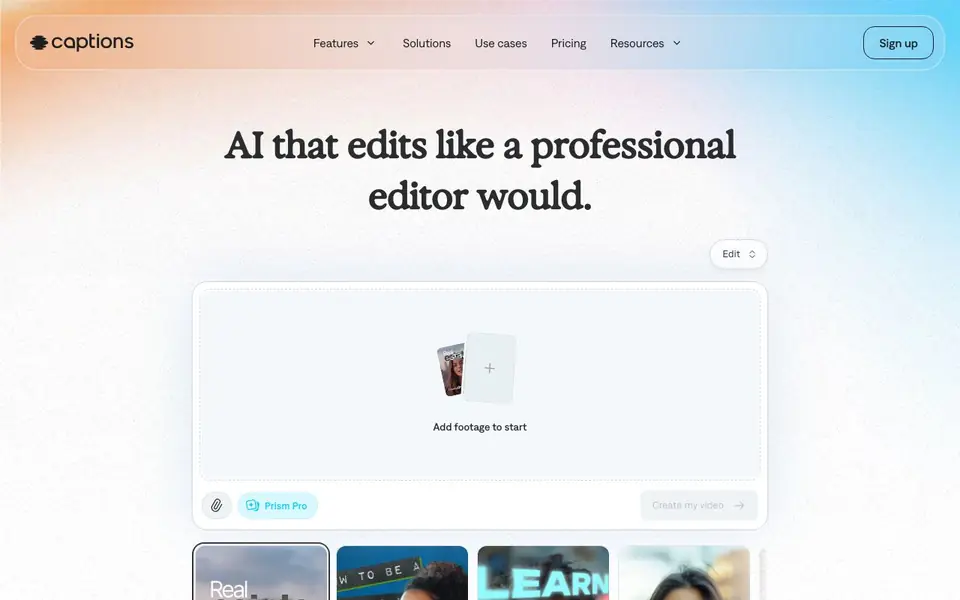
Captions is an AI video editor and generator that helps you go from raw footage to a finished video quickly. It is designed for anyone, whether you have never edited before or you are a professional. The AI handles the heavy lifting, like cutting scenes, adding B-roll, and fixing small issues, so you can focus on your story.
You start by uploading your footage or starting from scratch. Pick an editing style, and the AI edits your entire video at once. You can also use simple text prompts to direct changes, like adjusting a scene or updating a style. If you want, you can take manual control to fine-tune details.
Captions also offers tools like automatic captions with stylized fonts, translation into 100+ languages, and AI avatars, including a digital twin of yourself. It can fix eye contact, remove background noise, and trim pauses. The platform is free to sign up, but a subscription unlocks the best features. It is available online and as an app.
Captions features
- AI Edit: Automatically cuts scenes, overlays B-roll, and applies a style to your whole video.
- Automatic captions: Adds stylized captions to your video without manual work.
- Translation: Translates and subtitles your video in over 100 languages.
- AI avatars: Creates a digital twin or uses preset avatars for your videos.
- Text to edit: Directs changes and updates using simple text prompts.
What you can do with Captions
- Edit a talking head video into a polished, share-ready clip.
- Create faceless AI voiceover videos for social media.
- Generate product demos or ads with AI editing.
- Translate your video into multiple languages for a global audience.
How to get started with Captions
- Sign up for a free account on the Captions website.
- Upload your footage or start a new project from scratch.
- Pick an editing style and let the AI edit your video, then refine with prompts.
Tips for better results with Captions
- Upload your raw footage first, then pick an editing style. Captions will cut scenes and add B-roll automatically, so you can review the result and refine it with text prompts.
- Use Captions' text-to-edit feature to make specific changes, like adjusting a scene or updating the style. This gives you control without needing manual editing skills.
- For talking head videos, let Captions fix eye contact, remove background noise, and trim pauses. These automatic fixes make your clip look polished before you add captions or translation.
- Experiment with different AI edit styles on the same footage. Captions lets you switch styles with one click, so compare options to find the one that best fits your story.
Captions pricing
Captions has a free way to start, with paid plans for heavier use. Check captions.ai for current limits and prices.
What to check before you rely on Captions
- Check the pricing page for subscription details. The website says it's free to sign up but a subscription unlocks the best features, without listing specific plan costs.
- Verify your video's export format and resolution needs. The website does not state which export formats or quality settings Captions supports for downloads.
- Review the privacy policy before uploading footage. The website mentions agreeing to terms and privacy policy, but does not detail how your video data is stored or used.
Who Captions is for
Captions suits content creators, marketers, small businesses and educators. If that is not you, the AI video editors below may fit better.
Similar tools compared with Captions
| Tool | What it is | Pricing |
|---|---|---|
| Captions | AI video editor and generator | Freemium |
| SiVideoGen | AI video generator with multiple models | Freemium |
| Descript | AI video and audio text-based editor | Freemium |
| InVideo | Agentic AI video editor and maker | Freemium |
| VEED | AI video creation and editing platform | See website |
Captions FAQ
Is Captions free to use?
Yes, it is free to sign up for Captions. However, you will likely want a subscription to access the best features. You can explore their plans to find the right one for you.
Does Captions edit my whole video for me?
Yes. The AI Edit feature transforms your entire video at once. You pick a style, and it automatically cuts scenes, overlays B-roll, and more. You can also make changes afterward with simple prompts.
What types of videos can Captions edit?
Captions can handle many formats, including ads, product demos, talking head videos, tutorials, and social media videos. It also supports faceless AI voiceovers and AI UGC videos.
Can I create AI avatars with Captions?
Yes. You can make an AI twin of yourself or choose from digital avatars. You can use the same avatar for different topics and change their outfits, backgrounds, or product inserts with prompts.
What can Captions export and where can I share my finished videos?
Captions lets you export your finished video directly from the online editor or the app. You can then share it to social platforms or download it to your device. The website does not list specific export formats or direct integrations, so check the app or help center for those details.
Does Captions work on both desktop and mobile devices?
Yes, Captions is available online through your web browser and as a mobile app. You can start editing on your computer and continue on your phone, or vice versa. The website does not specify which operating systems the app supports, so check the app store for compatibility.
What does the free plan include in Captions?
Captions is free to sign up and use, but a subscription unlocks the best features. The free plan lets you try the AI editing, automatic captions, and other tools, but some advanced options may be limited. For exact details on what’s free versus paid, check the pricing page.


