
What is SOMA?
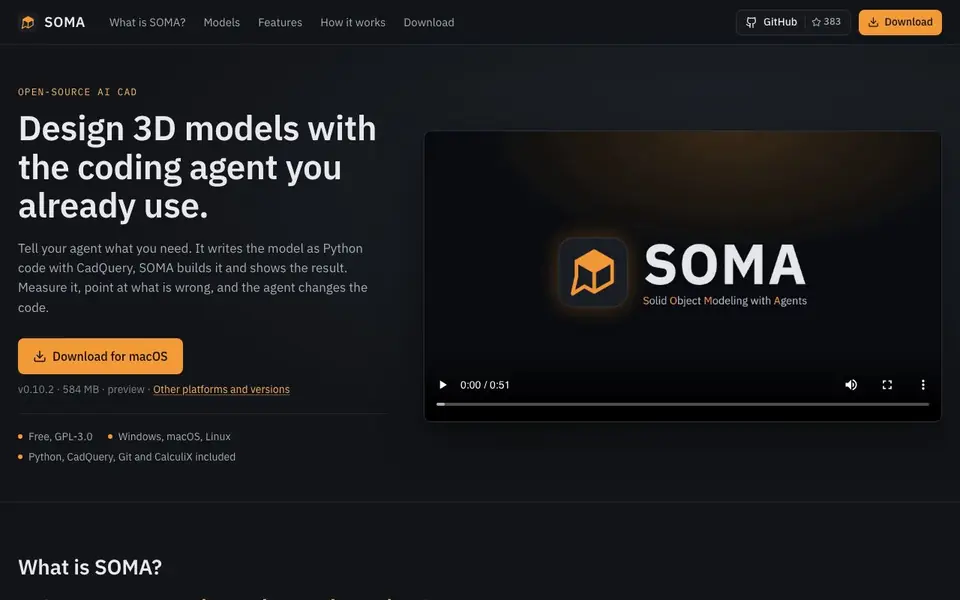
SOMA is a free, open-source desktop CAD application where you design 3D models by describing them to a coding agent you already use, such as Claude Code, Codex, OpenCode, or Gemini CLI. Instead of drawing geometry yourself, you tell the agent what you need, and it writes a parametric CadQuery model as Python code. SOMA then builds that model and displays it in a 3D viewer, so you can see the result immediately.
You work in a built-in code workspace where the agent runs in a terminal, the editor shows the code it writes, and Git tracks every version. The 3D viewer lets you measure, cut, explode, and mark up the model to point out what is wrong. You can then ask the agent to change the code, and SOMA rebuilds the model on every change. It includes instructions, rules, and a command-line tool to teach the agent how to model, check, and export for 3D printing, CNC, sheet metal, and more.
SOMA is an early prototype developed in the open, and it is free under GPL-3.0. It works on Windows 10+, macOS on Apple Silicon, and Linux x64, and it includes Python, CadQuery, Git, and CalculiX. You need to install and sign in to your own CLI agent, so your subscription and settings stay yours. The website notes that packages are not signed yet, so you may see a warning on first start.
SOMA features
- Models as code: Your agent writes the model as Python with CadQuery, and SOMA rebuilds it on every change.
- Mark up for the agent: You can point at what is wrong in the 3D view to tell the agent what to fix.
- Measure: Measure distances and dimensions directly on the 3D model.
- Parameters: Adjust parameters to change the model dimensions easily.
- Exploded views: Create exploded views to see how parts fit together.
- Animation: Animate the model to show assembly or motion.
- Analysis and FEM: Run finite element analysis on your model.
- Drawings and export: Export your model as STL, 3MF, or STEP files.
What you can do with SOMA
- Design a custom enclosure for a Raspberry Pi with vents and export it for 3D printing.
- Create a parametric wall shelf and adjust dimensions to fit your space.
- Model a desktop CNC router frame and run FEM analysis to check strength.
- Build a quadruped robot and animate its movement for testing.
How to get started with SOMA
- Click New model on the start page to begin with a small example box with a lid.
- Use the + above the terminal to start your CLI agent from the list SOMA finds on your computer.
- Describe what you need, like "A case for a Raspberry Pi 5 with vents in the lid, printed in PETG." SOMA builds every change, then you measure, point out issues, and export.
Tips for better results with SOMA
- Start with the built-in box and lid example so you see how SOMA structures CadQuery code before describing your own part to the agent.
- Use the 3D viewer's markup tools to point at specific problems, then tell SOMA's agent exactly what to fix, saving repeated rebuild cycles.
- Adjust parameters in the generated Python code yourself when you want quick dimension changes, since SOMA keeps every version in Git for easy rollback.
- Install and sign in to your preferred CLI agent first, then launch SOMA and confirm the unsigned package warning so the agent can run commands smoothly.
SOMA pricing
SOMA is free to use according to its website.
What to check before you rely on SOMA
- Verify your CLI agent is installed and signed in before starting, because SOMA relies on it and the website does not list any built-in agent or subscription.
- Check that your operating system matches the listed requirements, Windows 10+ x64, macOS on Apple Silicon, or Linux x64 with glibc 2.31+, since other setups are not stated as supported.
- Confirm you have over 1 GB of disk space and accept the unsigned package warning on first start, as the website notes packages are not signed yet.
Who SOMA is for
SOMA suits makers, engineers, hobbyists and product designers. If that is not you, the AI 3D and game tools below may fit better.
Similar tools compared with SOMA
| Tool | What it is | Pricing |
|---|---|---|
| SOMA | Open-source AI CAD desktop app | Free |
| SiGameGen | AI game builder from one sentence | Freemium |
| Scenario | AI platform for creative asset generation | See website |
| Spline | Browser-based 3D design with AI | Freemium |
| Rosebud | AI game maker with prompts | See website |
SOMA FAQ
What is SOMA?
SOMA is a free, open-source desktop CAD app where you describe a part to a coding agent, and the agent writes a CadQuery model that SOMA builds and shows in 3D.
Is SOMA free?
Yes, SOMA is free and open source under GPL-3.0. You can download it for macOS, Windows, or Linux without paying.
Which AI agents work with SOMA?
SOMA works with any CLI agent that can read files and run commands, including Claude Code, Codex CLI, OpenCode, and Gemini CLI. You install and sign in yourself.
What can I export from SOMA?
You can export your models as STL, 3MF, or STEP files, which are common formats for 3D printing and CAD.
Does SOMA run on my computer or do I need a cloud account?
SOMA runs locally on your computer. It works on Windows 10+, macOS on Apple Silicon, and Linux x64. You don't need a SOMA account, but you do need to install and sign in to your own CLI agent, like Claude Code or Codex, before you can use it.
What can SOMA export for 3D printing or CNC?
SOMA can export your models as STL, 3MF, or STEP files. These formats cover 3D printing and CNC workflows. The website mentions export for 3D printing, CNC, and sheet metal, but the exact file formats beyond STL, 3MF, and STEP are not listed.
Does SOMA include a built-in AI agent or do I need to bring my own?
SOMA does not include its own AI agent. You bring your own CLI agent, such as Claude Code, Codex, OpenCode, or Gemini CLI. You install and sign in to that agent yourself, so your subscription and settings stay yours. SOMA provides the workspace and instructions for the agent.


