

What is EaseUS?
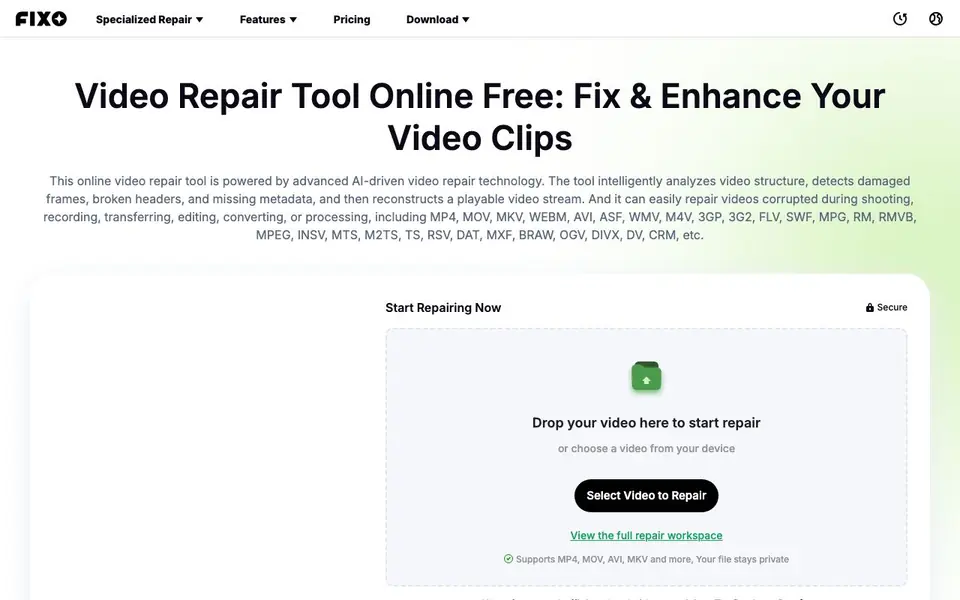
EaseUS Online Video Repair is a free web-based tool that fixes videos damaged during shooting, recording, transferring, editing, converting, or processing. It supports a wide range of formats including MP4, MOV, MKV, WEBM, AVI, and many others. The tool uses AI to analyze video structure, detect damaged frames, broken headers, and missing metadata, then reconstructs a playable video stream.
To use it, you upload the corrupted video file, ideally the original recording. The tool identifies the format and checks the damage, then you review the repair plan and start rebuilding recoverable data. After repair, you can preview the playback before downloading a separate repaired copy. The whole process typically takes about a minute.
This tool suits anyone with precious but damaged video files, from casual users to professionals. It can fix issues like blurry videos, flickering, playback errors, lagging, audio sync problems, missing subtitles, and missing metadata. Your file stays private during the process. For faster local repair, there is a desktop Pro version available.
EaseUS features
- AI-driven repair: Automatically analyzes video structure and reconstructs playable streams.
- Wide format support: Handles MP4, MOV, MKV, WEBM, AVI, and many other video formats.
- Damage detection: Identifies damaged frames, broken headers, and missing metadata.
- Preview before download: Check the repaired playback before saving a separate copy.
- Privacy protection: Your uploaded files stay private during the repair process.
What you can do with EaseUS
- Fix videos corrupted by sudden power outages or improper device ejection.
- Repair MP4 or MOV files that won't open or play after a failed transfer.
- Restore blurry, flickering, or shaky video footage to a watchable state.
- Recover missing metadata like title, date, and description in video files.
How to get started with EaseUS
- Upload the corrupted video file, choosing the original recording when possible.
- Review the detected damage and repair plan, then start rebuilding recoverable data.
- Preview the repaired playback and download a separate repaired copy.
Tips for better results with EaseUS
- Upload the original recording file whenever possible, since it contains the most complete data for the AI to analyze and reconstruct a playable stream.
- Use EaseUS Online Video Repair for common issues like blurry footage, flickering, playback errors, or audio sync problems, but know it may not restore severely truncated files.
- Preview the repaired playback in the tool before downloading, so you can confirm the output is watchable and decide if you need to try a different source file.
- Keep your corrupted file private during the process, as EaseUS states your uploads stay secure, but note the online tool may not handle very large files quickly.
- Check the supported format list first, since EaseUS handles MP4, MOV, MKV, AVI and many others, but not every rare codec or container is guaranteed.
- Run the repair on a copy of your original file, not the only version, to avoid any risk of further damage during the upload or download steps.
EaseUS pricing
EaseUS is free to use according to its website.
What to check before you rely on EaseUS
- Verify the tool's free plan covers your file size and repair duration, since the website does not list any explicit upload size or time limits.
- Confirm your video format is in the supported list, as EaseUS lists many but does not state that every codec or container will work.
- Check whether the repaired output preserves original quality, since the website does not specify bitrate, resolution, or compression details.
- Ensure you have a stable internet connection and enough time, because the average repair takes about a minute but larger files may take longer.
- Review the privacy policy for data retention, as the site says files stay private but does not state how long they are stored or if they are deleted.
Who EaseUS is for
EaseUS suits videographers, content creators and everyday users with damaged videos. If that is not you, the AI video editors below may fit better.
Similar tools compared with EaseUS
| Tool | What it is | Pricing |
|---|---|---|
| EaseUS | Free online AI video repair tool | Free |
| SiVideoGen | AI video generator with multiple models | Freemium |
| Descript | AI video and audio text-based editor | Freemium |
| InVideo | Agentic AI video editor and maker | Freemium |
| VEED | AI video creation and editing platform | See website |
EaseUS FAQ
Is EaseUS Online Video Repair really free?
Yes, the online video repair tool is free to use. You can upload damaged video files and repair them without paying. There is also a desktop Pro version for faster local repair, but the online tool itself is free.
What video formats can I repair with this tool?
The tool supports a wide range of formats including MP4, MOV, MKV, WEBM, AVI, ASF, WMV, M4V, 3GP, 3G2, FLV, SWF, MPG, RM, RMVB, MPEG, INSV, MTS, M2TS, TS, RSV, DAT, MXF, BRAW, OGV, DIVX, DV, and CRM.
How long does the repair process take?
The average repair time is about one minute. After uploading your video, the tool analyzes the damage and rebuilds the playable stream, then you can preview and download the repaired file.
Will my video file remain private during repair?
Yes, the tool states that your file stays private. The website emphasizes security and privacy, so you can upload your videos with confidence.
Does EaseUS Online Video Repair require creating an account to use it?
The website does not mention whether you need an account to use EaseUS Online Video Repair. You can check the tool's page directly for any sign-in or registration requirements before uploading your video.
Can EaseUS Online Video Repair fix videos that have no audio or have audio out of sync?
Yes, EaseUS Online Video Repair can address audio syncing problems and other playback errors. The tool's AI analyzes the video structure and reconstructs a playable stream, which can help restore audio alignment in damaged files.
What happens to my video file after I download the repaired copy from EaseUS Online Video Repair?
After you download the repaired copy, your original uploaded file is no longer needed for the process. The website states your file stays private during repair, but it does not specify whether the uploaded file is deleted automatically after download. Check the privacy policy for retention details.


