

What is Browse AI?
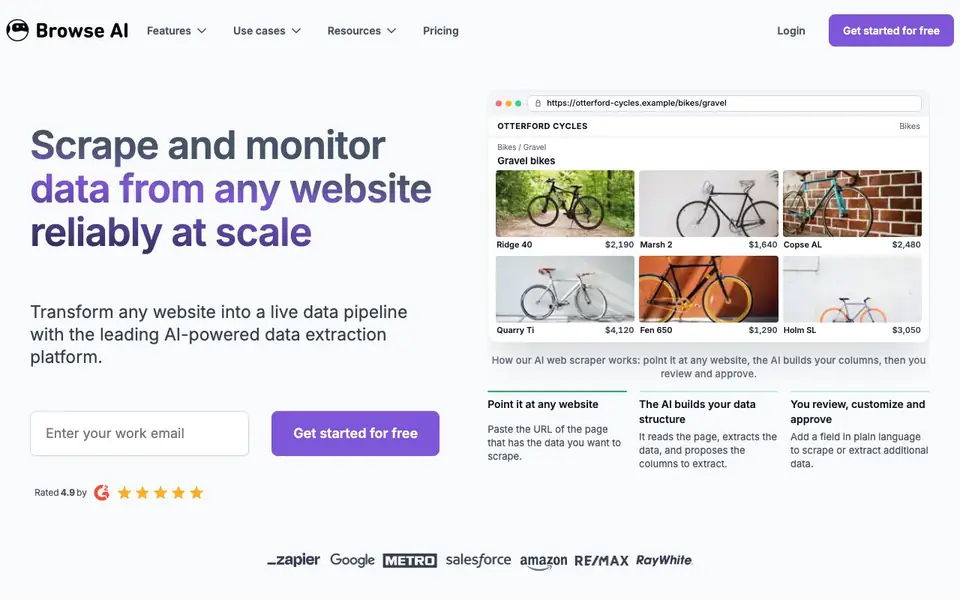
Browse AI is a no-code platform that lets you scrape and monitor data from almost any website. You paste a URL, and its AI reads the page, proposes the columns to extract, and you approve or customize them. It handles dynamic content, bot evasion, proxies, retries, and rate limiting automatically, so you get reliable data without writing code.
To start, you paste the URL of the page with the data you want. The AI builds your data structure by suggesting columns like product names, prices, and stock. You review, add fields in plain language, and approve. Then you can schedule the scraper to run hourly, daily, weekly, or monthly, and it alerts you to website changes.
You can export the data or turn it into an API or webhook, and integrate with 7,000+ tools and apps for automated workflows. It suits marketers, analysts, and businesses that need web data at scale. The website mentions over 770,000 users and enterprise services, but does not state specific pricing details beyond a free start.
Browse AI features
- AI column building: The AI reads a webpage and proposes the data columns to extract for you.
- Website change monitoring: It alerts you to changes and adapts automatically so scrapers don't break.
- Dynamic content capture: Mimics human actions like clicks and form fills to scrape interactive pages.
- Scheduled runs: Set scrapers to run hourly, daily, weekly, or monthly for continuous data.
- API and integrations: Turn scraped data into an API or webhook, or connect with 7,000+ apps.
What you can do with Browse AI
- Scrape product listings with prices and stock from e-commerce sites.
- Monitor competitor websites for price changes or new content.
- Extract data from thousands of webpages for market research.
- Build automated workflows by sending scraped data to your tools.
How to get started with Browse AI
- Paste the URL of the webpage with the data you want to scrape.
- Review the AI-proposed columns and add any extra fields in plain language.
- Approve the setup, then schedule runs or export the data as needed.
Tips for better results with Browse AI
- Start with a simple, static page like a product listing to let Browse AI propose accurate columns, then add custom fields in plain language for extra data you need.
- Review the columns Browse AI suggests before approving, and rename or remove any that are irrelevant to keep your extracted dataset clean and focused on what matters.
- Use Browse AI's scheduling to run scrapers hourly or daily for price or stock changes, and set up alerts so you catch updates without manually rechecking pages.
- Test Browse AI on pages with dynamic content or login requirements by using the training robot feature, which mimics clicks and form fills to capture interactive data reliably.
Browse AI pricing
Browse AI has a free way to start, with paid plans for heavier use. Check browse.ai for current limits and prices.
What to check before you rely on Browse AI
- Check whether your plan includes enough monthly runs or credits for your scraping volume, since the website does not list specific limits or pricing details beyond a free start.
- Verify that the websites you scrape allow automated access in their terms of service, as Browse AI's bot evasion does not override legal or ethical restrictions.
- Confirm the export formats and integration options you need are available in your plan, because the site mentions API and webhooks but does not state which tiers include them.
Who Browse AI is for
Browse AI suits marketers, data analysts, business owners and researchers. If that is not you, the AI data analysis tools below may fit better.
Similar tools compared with Browse AI
| Tool | What it is | Pricing |
|---|---|---|
| Browse AI | No-code AI web scraper and monitor | Freemium |
| Julius AI | AI workspace for data and content | See website |
| Rows | AI-powered spreadsheet and data analyst | See website |
| Clay | AI platform for go-to-market workflows | Freemium |
| Semrush Copilot | SEO and AI search visibility platform | Freemium |
Browse AI FAQ
Do I need to code to use Browse AI?
No. Browse AI is designed for no-code use. You paste a URL, the AI builds your data structure, and you approve or customize it. No programming skills are required.
Is Browse AI free?
The website says you can 'Get started for free', which suggests a free plan or trial. It does not state specific pricing details, so check the pricing page for exact limits and paid plans.
Can I monitor websites for changes?
Yes. Browse AI lets you schedule data extraction and webpage monitors to run hourly, daily, weekly, or monthly. It alerts you to changes and adapts automatically so the scraper doesn't break.
What can I do with the scraped data?
You can export it, turn it into an API or webhook, or integrate it with 7,000+ tools and apps. This lets you build automated workflows and send data to your existing systems.
Can Browse AI export scraped data to Google Sheets or Excel?
Yes, Browse AI lets you export the data you scrape. The website mentions you can turn scraped data into an API or webhook and integrate with 7,000+ tools and apps, which likely includes spreadsheet apps. For specific export formats, check the integrations list on the Browse AI website.
Does Browse AI run on Windows, Mac, or only in the browser?
Browse AI is a web-based platform, so you can use it from any device with a modern web browser, including Windows, Mac, or Linux computers. The website does not mention dedicated desktop or mobile apps. You can access it by logging into your account on browse.ai.
What does the free plan of Browse AI include?
Browse AI offers a free start, but the website does not specify exactly what the free plan includes, such as the number of runs or credits. To find the current free plan limits, visit the Pricing page on the Browse AI website and look for the free tier details.


