

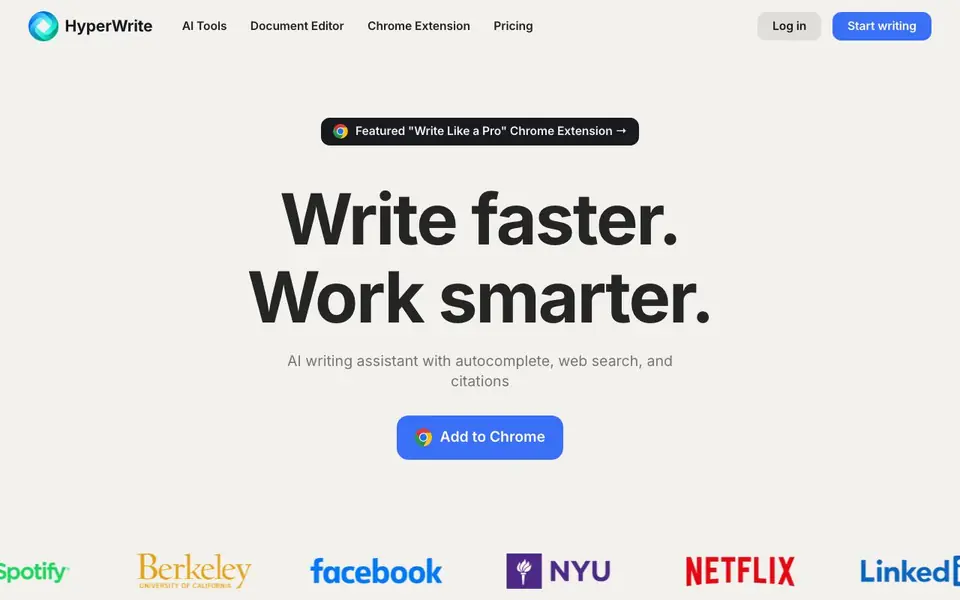
What is HyperWrite?
HyperWrite is an AI writing assistant that works in your browser through a Chrome extension and an AI document editor. It offers hundreds of tools for writing, editing, chatting, and researching. You can use it to generate original content, rewrite existing text, craft emails, write speeches, and simplify complex topics. The assistant also integrates real-time web search and citations, so you can back up your writing with reliable sources.
To get started, you add the Chrome extension to your browser. As you type, you get predictive AI suggestions that help you finish thoughts and refine your tone. You can also open the AI document editor to work on longer pieces with collaborative AI support. For research, the Scholar AI tool searches millions of scholarly articles and papers, giving you peer-reviewed results in seconds.
HyperWrite suits writers, students, professionals, and anyone who wants to write faster and communicate more clearly. It helps with repetitive tasks like email replies and with complex workflows that involve switching between apps. The website highlights that users appreciate its time savings and the team's responsiveness to feedback. It does not specify pricing details on the homepage, so you would need to check the pricing page for plan options.
HyperWrite features
- Flexible AutoWrite: Generates content on any topic or format using AI, adapting to your style and goals.
- Rewrite Content: Rephrases your existing text while keeping the original meaning intact.
- Email Responder: Creates quick, effective replies to streamline your email communication.
- AI Speech Writer: Turns your ideas into compelling speech content in seconds.
- Scholar AI: Searches peer-reviewed articles and papers for reliable research insights.
What you can do with HyperWrite
- Draft blog posts, articles, or essays with AI-generated content.
- Rewrite paragraphs to improve clarity or change the tone.
- Respond to emails faster with automated reply suggestions.
- Write speeches for events or presentations from your notes.
- Research academic topics with citations from scholarly sources.
How to get started with HyperWrite
- Add the HyperWrite Chrome extension to your browser.
- Start typing in any text field to get predictive AI suggestions.
- Open the AI document editor or use specific tools like AutoWrite or Scholar AI for more control.
Tips for better results with HyperWrite
- Install the HyperWrite Chrome extension and type naturally in any text field to see predictive suggestions that complete your thoughts and refine your tone as you work.
- Use HyperWrite's Flexible AutoWrite for long-form pieces by giving it a clear topic and style goal, then edit the output to match your unique voice.
- For research-backed writing, open HyperWrite's Scholar AI and enter your topic to pull peer-reviewed articles, then cite them directly in your draft.
- When rewriting existing text with HyperWrite, paste the original and specify the tone or clarity level you want, so the tool keeps the meaning while adjusting the style.
- checks
HyperWrite pricing
HyperWrite’s homepage does not list prices. Check hyperwriteai.com for current plans.
What to check before you rely on HyperWrite
- Check the pricing page before committing, since the homepage does not state any plan costs or free tier limits.
- Verify whether HyperWrite's Chrome extension works on your preferred browsers, as the site only mentions Chrome support.
- Confirm what export formats the AI document editor supports for saving your work, because the website does not list them.
- checks
Who HyperWrite is for
HyperWrite suits writers, students, professionals and email users. If that is not you, the AI writing tools below may fit better.
Similar tools compared with HyperWrite
| Tool | What it is | Pricing |
|---|---|---|
| HyperWrite | AI writing assistant with autocomplete and research | See website |
| FreeSiTools | Free AI image prompt generator | Free |
| Jenni AI | AI academic writing and research assistant | Freemium |
| Wordtune | AI writing and paraphrasing assistant | Freemium |
| Grammarly | AI writing assistant for clear communication | Freemium |
HyperWrite FAQ
What does HyperWrite do?
HyperWrite is an AI writing assistant that helps you generate, edit, and polish text. It offers tools for content creation, rewriting, email replies, speech writing, and research, all accessible through a Chrome extension and document editor.
Is HyperWrite free?
The website does not state pricing details on the homepage. You would need to visit the pricing page to see if there is a free plan or trial available.
Who is HyperWrite for?
It is for writers, students, professionals, and anyone who wants to write faster. It helps with tasks like drafting content, responding to emails, and conducting research with citations.
Can HyperWrite help with research?
Yes, Scholar AI searches millions of scholarly articles and papers, providing peer-reviewed results in seconds. This helps you back your writing with accurate, citation-backed information.
Does HyperWrite offer a mobile app or does it only work in a browser?
HyperWrite works through a Chrome extension and an AI document editor, both of which are browser-based. The website does not mention a dedicated mobile app. To use HyperWrite on your phone, you would access it through the browser, but for the full extension experience, you need Chrome on a desktop or laptop.
Can HyperWrite export or save my documents in formats like PDF or Word?
The HyperWrite website does not specify which export formats are available for your documents. It focuses on writing, editing, and research within its AI document editor. For details on exporting or saving your work, you would need to check the tool's interface or contact support, as this information is not listed on the homepage.
Does HyperWrite require an account to use, and what does the free plan include?
HyperWrite requires you to log in to start writing, as indicated by the 'Log in' option on the site. The website does not detail what the free plan includes or if there is a free trial. To find out about account requirements and free features, you should visit the pricing page or sign up to see what's available.


