

What is Upscayl?
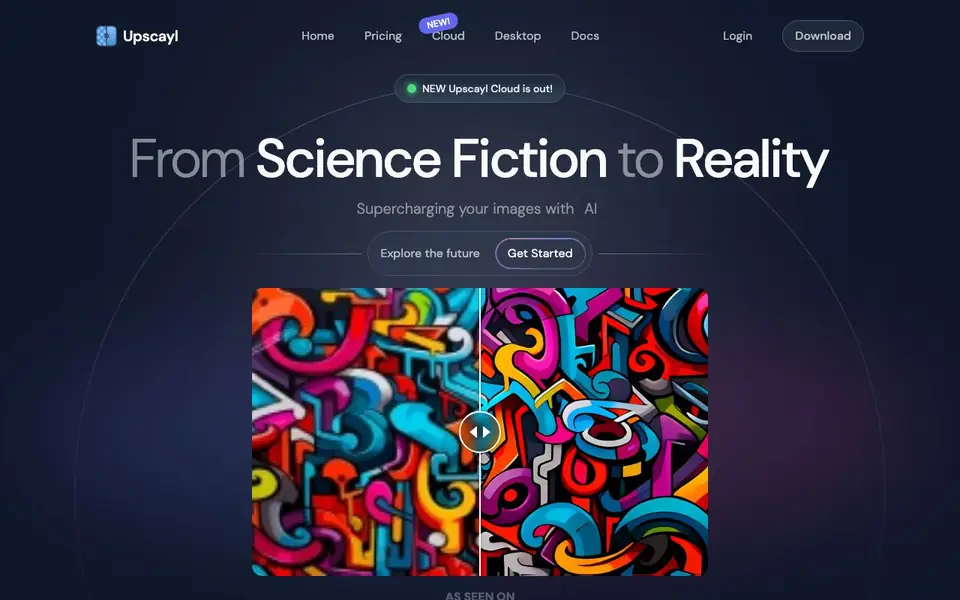
Upscayl is an AI-powered image upscaler that turns blurry or pixelated photos into clear, high-resolution images. It works on Linux, MacOS, and Windows, and you can also use it on mobile and tablet devices. The tool is designed for creators, businesses, designers, artists, and developers who want to improve image quality without complex editing skills.
To get started, you download the desktop app or use the cloud version. You then select your image, choose an upscaling model, and let the AI enhance it. You can upscale images up to 16x their original resolution, and the process is claimed to be 10x faster than before. The desktop app is free and open source, so you can download it once and use it forever.
Upscayl also offers features like color accuracy for printing, unlimited cloud storage, AI face enhancement, detail recovery, and batch processing for multiple images at once. You can even generate new AI images from text descriptions. the website says that the desktop app remains the best image upscaler for Linux, MacOS, and Windows, with new features and improvements.
Upscayl features
- AI-powered upscaling: Upscale images up to 16x with multiple models for crystal-clear results.
- Color accuracy: Preserve details and colors, making images suitable for printing.
- Unlimited cloud storage: Access your files from anywhere, anytime with the cloud service.
- AI face enhancement: Improve faces in images and recover details with smart editing.
- Batch processing: Upscale several images at once to save time.
What you can do with Upscayl
- Enhance blurry photos from old cameras or phones.
- Upscale low-resolution images for printing or large displays.
- Batch process multiple images to improve quality quickly.
- Generate new AI images from text descriptions for creative projects.
How to get started with Upscayl
- Download the Upscayl desktop app for Linux, MacOS, or Windows, or sign up for the cloud service.
- Open the app and select the image you want to upscale.
- Choose an upscaling model and click to enhance your image, then save it in high quality.
Tips for better results with Upscayl
- Start with the free desktop app for local upscaling, then test different models on a sample image to see which one preserves the most detail for your specific photo type.
- Use Upscayl's batch processing to upscale multiple images at once, but first check the output quality on one image to avoid wasting time on a model that doesn't suit your needs.
- For printing, rely on Upscayl's color accuracy feature, but compare the upscaled version to the original on screen to confirm colors stay true before sending to a printer.
- Try the double upscayl option for heavily pixelated images, but be aware that running it twice can amplify artifacts, so inspect the result at 100% zoom for unwanted noise.
Upscayl pricing
Upscayl has a free way to start, with paid plans for heavier use. Check upscayl.org for current limits and prices.
What to check before you rely on Upscayl
- Check whether the free desktop app includes all features like batch processing and face enhancement, or if some require the cloud version with a paid plan, since the website doesn't list feature limits.
- Verify the cloud service's storage and usage limits before uploading many images, as the site claims unlimited storage but doesn't state any fair-use policy or data retention terms.
- Confirm the export formats and resolution options in the desktop app, since the website mentions up to 16x upscaling but doesn't specify which file types you can save or whether they vary by model.
Who Upscayl is for
Upscayl suits creators, businesses, designers, artists and developers. If that is not you, the AI photo editors below may fit better.
Similar tools compared with Upscayl
| Tool | What it is | Pricing |
|---|---|---|
| Upscayl | AI image upscaler and enhancer | Freemium |
| SiPhotoEditor | AI photo editor by description | Paid |
| SiImageGen | AI image generator and photo editor | Freemium |
| Clipdrop | AI photo editing and image generation suite | See website |
| Photoroom | AI photo editor for e-commerce product visuals | Freemium |
Upscayl FAQ
Is Upscayl free to use?
Yes, the desktop app is free and open source. You can download it once and use it forever. The website also mentions a cloud service, but pricing details are not stated on the homepage.
What platforms does Upscayl support?
Upscayl works on Linux, MacOS, and Windows for the desktop app. The website also says it is available on mobile and tablet devices, so you can use it across all your devices.
How much can Upscayl upscale an image?
Upscayl can upscale images up to 16x their original resolution. It also offers multiple models to choose from, depending on your needs, and you can double upscale for even better quality.
Can I process multiple images at once?
Yes, Upscayl supports batch processing, so you can upscale several images in one go. This is useful if you have a large collection of photos to enhance.
Does Upscayl require an account to use the desktop app?
The Upscayl website does not mention whether an account is needed for the desktop app. It says the desktop app is free and open source, and you can download it once and use it forever. For account requirements, check the download or setup instructions on the official site.
Can Upscayl export images in formats like PNG or JPEG?
The Upscayl website does not specify which export formats are available. It mentions saving in high quality and preserving colors for printing, but it does not list specific file types. To see supported export formats, check the app's documentation or settings after installation.
Is Upscayl suitable for professional photographers who need print-ready images?
Upscayl is designed for creators, businesses, designers, and artists. It offers color accuracy for printing, which suggests it can handle print-ready needs. The website also mentions upscaling up to 16x and preserving details, making it a viable option for professional work, but it does not explicitly target photographers.


