

What is HAMA | AI Object remover, Image Eraser?
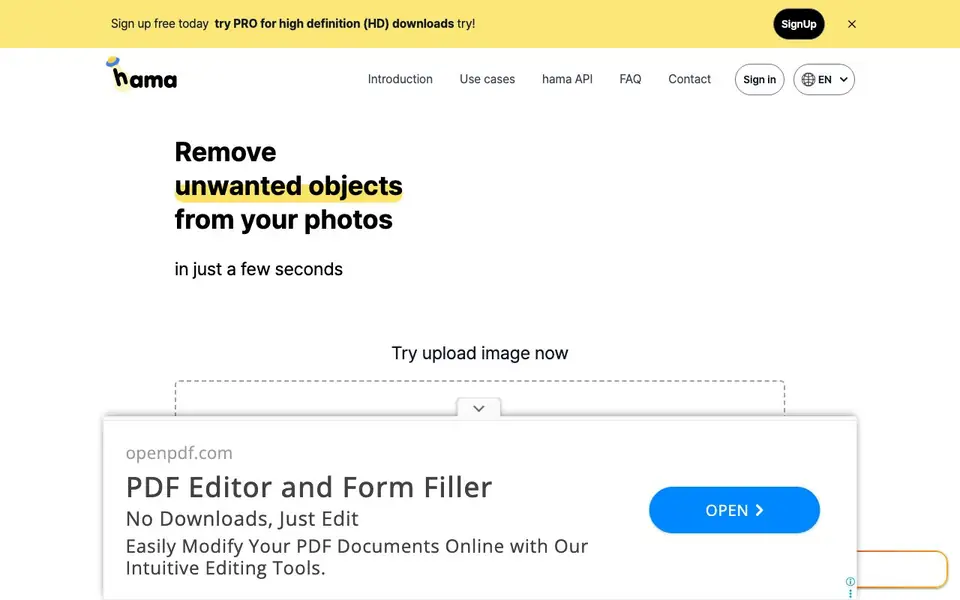
HAMA is a web-based AI tool that removes unwanted objects from your photos. You simply brush over the part you want to delete, click erase, and the tool fills the area with a natural-looking background. It works on people, objects, text, and blemishes.
To use it, you upload an image by dragging and dropping or clicking. Then you brush over the unwanted area and hit erase. The tool processes the image in about five seconds. You can erase repeatedly for better results, and you can try it with a sample image to see how it works.
HAMA suits anyone editing photos for personal or professional use. It is free to sign up, and a PRO plan offers high-definition downloads. The site also mentions an API for developers who want to integrate object removal into their own apps. Use cases listed include photo apps, template businesses, e-commerce, web builders, maps, and media.
HAMA | AI Object remover, Image Eraser features
- One-brush erasing: Brush over any unwanted object, person, or text to remove it from your photo.
- Fast processing: Get your edited image in about five seconds after clicking erase.
- Repeated erasing: Erase multiple times on the same image to improve the final result.
- Free sign-up: Create an account at no cost and start removing objects right away.
- API access: Integrate Hama's object removal into your own application or workflow.
What you can do with HAMA | AI Object remover, Image Eraser
- Remove photobombers or strangers from vacation pictures.
- Clean up product photos by erasing backgrounds or props.
- Delete text or watermarks from images before publishing.
- Retouch portraits by removing blemishes, wrinkles, or spots.
How to get started with HAMA | AI Object remover, Image Eraser
- Go to hama.app and upload an image by dragging and dropping or clicking to browse.
- Brush over the unwanted object, person, or text you want to remove.
- Click erase and wait a few seconds for the result; repeat if needed.
Tips for better results with HAMA | AI Object remover, Image Eraser
- Upload a high-resolution image to HAMA so the erased area blends with more detail, giving you a cleaner result than with a low-quality photo.
- Erase repeatedly on the same spot in HAMA, as the tool improves the fill with each pass, especially for large or complex objects.
- Use the sample image provided by HAMA to test different brush sizes and strokes before working on your own photo, so you learn how the tool behaves.
- Zoom in on the object you want to remove in HAMA and brush tightly around its edges, avoiding extra background, to reduce leftover artifacts.
HAMA | AI Object remover, Image Eraser pricing
HAMA | AI Object remover, Image Eraser has a free way to start, with paid plans for heavier use. Check hama.app for current limits and prices.
What to check before you rely on HAMA | AI Object remover, Image Eraser
- Check the free plan's upload size limit and number of edits, as the website does not state these, so you may hit restrictions during real work.
- Verify whether the free plan includes HD downloads, since the site only mentions PRO for high-definition, and unclear limits could affect your output.
- Confirm how HAMA handles your uploaded images for privacy and data retention, as the site does not detail this, which matters for sensitive photos.
Who HAMA | AI Object remover, Image Eraser is for
HAMA | AI Object remover, Image Eraser suits photographers, e-commerce sellers, web designers and casual users. If that is not you, the AI photo editors below may fit better.
Similar tools compared with HAMA | AI Object remover, Image Eraser
| Tool | What it is | Pricing |
|---|---|---|
| HAMA | AI Object remover, Image Eraser | AI photo object remover and eraser | Freemium |
| SiPhotoEditor | AI photo editor by description | Paid |
| SiImageGen | AI image generator and photo editor | Freemium |
| Clipdrop | AI photo editing and image generation suite | See website |
| Photoroom | AI photo editor for e-commerce product visuals | Freemium |
HAMA | AI Object remover, Image Eraser FAQ
Is Hama free to use?
Yes, you can sign up for free and use the eraser. There is also a PRO plan for high-definition downloads, but the site does not list specific pricing details. Check the sign-up page for current plan options.
What can I remove from my photos?
You can remove unwanted people, objects, text, and obstructions. It also works on blemishes like spots, freckles, pimples, and wrinkles. Just brush over the area you want to delete.
Is there an image size limit?
The website lists a question about size limits in its FAQ, but it does not provide the answer on the visible page. You may need to contact support or check the FAQ section directly for details.
Can I use Hama in my own app?
Yes, Hama offers an API. You send the original image and a mask image to the API, it processes them, and returns the final result. This is useful for developers building photo apps or web tools.
What image formats can I upload to Hama?
Hama accepts common image formats like JPG and PNG for upload. The website does not list every supported format, so if you use a less common format, check the upload dialog or contact support to confirm it works before editing.
Does Hama require an account to use the free plan?
Yes, Hama requires you to sign up for a free account before you can start removing objects. The sign-up is free, and after creating your account you can upload images and erase objects without paying. The PRO plan is optional for HD downloads.
Can I use Hama on my mobile phone or tablet?
Hama is a web-based tool, so you can access it through a browser on any device with internet, including phones and tablets. The website does not mention dedicated mobile apps, but the drag-and-drop upload works on touch screens in most modern browsers.


