

What is AI Watermark Remover?
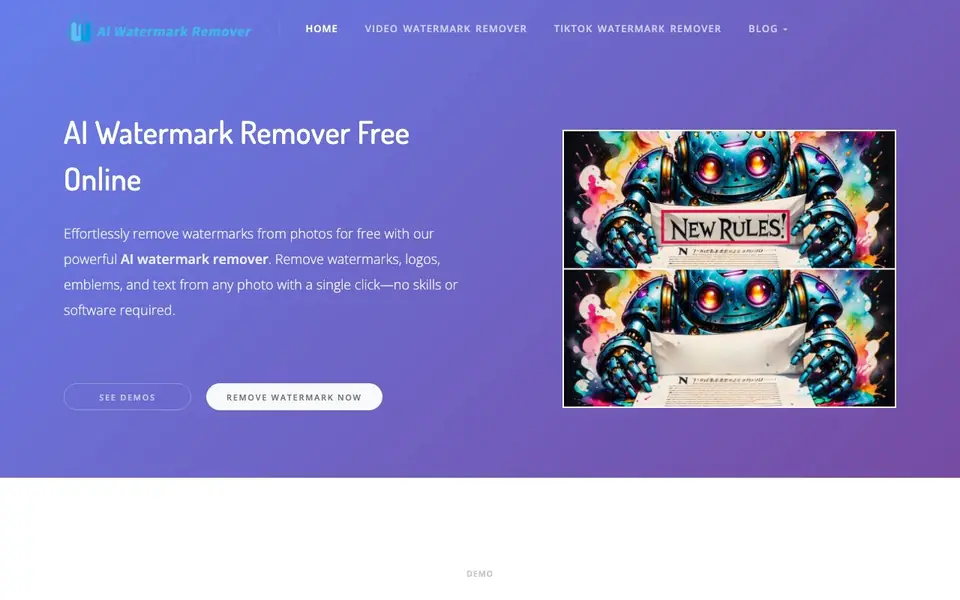
AI Watermark Remover is a free online tool that cleans watermarks, logos, emblems, and text from your images and videos. You upload a photo, and its AI redraws the area to restore the original look. No software or Photoshop skills are needed.
To use it, you upload a photo in PNG, JPEG, JPG, or WEBP format. You can let the AI remove the watermark automatically or manually brush over the area with an adjustable brush size for precise control. After processing, you download the clean image for social media or work.
The tool is completely free and does not add new watermarks. It also states it protects your privacy and stores no data. Some advanced features like batch removal, video watermark removal, smart text detection, and multi-platform video downloading are listed as coming soon.
AI Watermark Remover features
- Automatic removal: Upload a photo and the AI removes watermarks for you in one click.
- Manual brush control: Adjust brush size to precisely highlight the object you want removed.
- Free with no added watermark: The tool is 100% free and does not put new watermarks on your results.
- Privacy protection: The website states it does not store any of your data.
- Multiple formats supported: You can upload PNG, JPEG, JPG, and WEBP images.
What you can do with AI Watermark Remover
- Clean up watermarked photos before posting them on social media.
- Remove logos or text from images for personal or work projects.
- Restore old photos by erasing unwanted emblems or stamps.
- Prepare clean images for presentations or documents without visible marks.
How to get started with AI Watermark Remover
- Go to the AI Watermark Remover website and click the upload area.
- Drag and drop your image or select a file in PNG, JPEG, JPG, or WEBP format.
- Let the AI remove the watermark automatically or brush over it manually, then download the result.
Tips for better results with AI Watermark Remover
- Use the manual brush mode for complex watermarks that overlap detailed areas, adjusting the brush size to match the mark precisely for cleaner redraws.
- Upload the highest resolution version of your image to AI Watermark Remover, as larger source files give the AI more detail to work with when restoring the area.
- Test AI Watermark Remover on a small, low-stakes crop first to see how it handles your specific watermark type before processing the full image.
- For best results with AI Watermark Remover, choose images where the watermark sits on a relatively uniform background, as this makes the redraw less noticeable.
AI Watermark Remover pricing
AI Watermark Remover is free to use according to its website.
What to check before you rely on AI Watermark Remover
- Confirm the free plan's file size and number of uploads per session, as the website does not state any limits.
- Check the export formats available for downloads, since the site only lists input formats and does not specify output options.
- Verify whether the no-data-storage claim covers both images and videos, as the privacy statement does not detail video processing.
Who AI Watermark Remover is for
AI Watermark Remover suits content creators, social media users, photographers and everyday users. If that is not you, the AI photo editors below may fit better.
Similar tools compared with AI Watermark Remover
| Tool | What it is | Pricing |
|---|---|---|
| AI Watermark Remover | Free AI photo and video watermark remover | Free |
| SiPhotoEditor | AI photo editor by description | Paid |
| SiImageGen | AI image generator and photo editor | Freemium |
| Clipdrop | AI photo editing and image generation suite | See website |
| Photoroom | AI photo editor for e-commerce product visuals | Freemium |
AI Watermark Remover FAQ
What does the AI Watermark Remover do?
It removes watermarks, logos, emblems, and text from your photos and videos. You upload an image, and the AI redraws the marked area to restore the original look. It works for social media posts and other projects.
Is the AI Watermark Remover really free?
Yes, the website states the tool is completely free and does not add any new watermarks to your results. There is no mention of a paid plan or trial, so you can use it without cost.
How do I use the tool to remove a watermark?
Upload a photo in PNG, JPEG, JPG, or WEBP format. Then either let the AI remove the watermark automatically or use the brush tool to manually highlight the area. After processing, download the clean image.
Can I remove watermarks from videos with this tool?
Video watermark removal is listed as coming soon on the website. Currently, the tool focuses on photo watermark removal. Check the site for updates on when video features will be available.
Does the AI Watermark Remover require an account or signup?
The AI Watermark Remover website does not mention needing an account or signup to use the tool. You can simply upload an image and start removing watermarks. For any changes to this policy, check the website's current instructions or terms.
What image formats can I upload to the AI Watermark Remover?
You can upload PNG, JPEG, JPG, and WEBP images to the AI Watermark Remover. The tool does not mention support for other formats like GIF or BMP. If you need a different format, check the website for updates or contact support.
Can I use the AI Watermark Remover on my phone or tablet?
The AI Watermark Remover website does not specify whether it works on mobile devices. Since it is a web-based tool, you may be able to use it from a mobile browser, but the site does not confirm this. Check the website for any mobile-specific instructions or limitations.


