

What is AI Photo Enhancer?
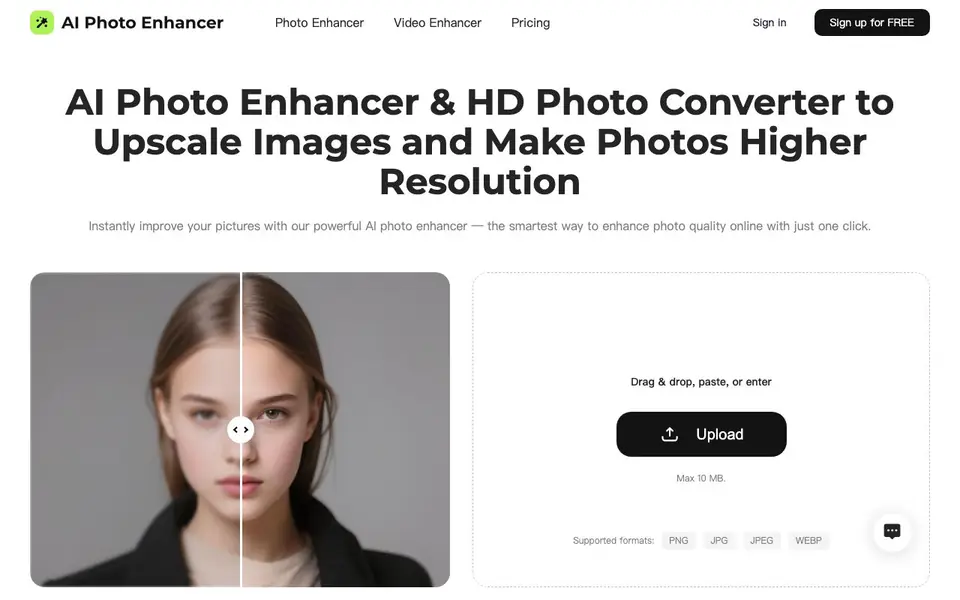
AI Photo Enhancer is a web-based tool that improves the quality of your existing photos. It can upscale images to 4K resolution, sharpen blurry details, reduce noise, correct colors, and restore old or damaged pictures. You upload a photo, and the AI processes it automatically to make it clearer and more detailed.
To use it, you drag and drop an image, paste it, or enter a file path. The tool accepts PNG, JPG, JPEG, and WEBP formats, with a maximum file size of 10 MB. After uploading, you can choose an enhancement option like sharpening, noise reduction, upscaling, color correction, pixel restoration, or blur removal. The AI then processes the image and gives you a higher-quality result.
This tool suits anyone who wants quick photo fixes without editing skills. It works for portraits, landscapes, night shots, old family photos, and even memes. The website mentions it is free to use, but also has a pricing page, suggesting a free plan with paid options. Some features may have limits, but the site does not specify them.
AI Photo Enhancer features
- AI Sharpening: Sharpens edges and textures to make blurry photos clearer.
- Noise Reduction: Removes grain and color speckles while keeping edges sharp.
- 4K Upscaling: Increases image resolution for prints, presentations, or projects.
- Color Correction: Adjusts tones, saturation, and contrast for vibrant colors.
- Blur Removal: Fixes out-of-focus areas and restores edge definition.
What you can do with AI Photo Enhancer
- Restore old family photos by removing scratches and fading.
- Enhance landscape shots with vivid colors and sharper contrast.
- Brighten dark or low-light night pictures to reveal hidden details.
- Sharpen portrait facial features for a natural, refined look.
How to get started with AI Photo Enhancer
- Go to the website and upload your photo by dragging, dropping, pasting, or entering the file path.
- Choose an enhancement option like sharpen, upscale, or color correction.
- Wait for the AI to process and download your improved image.
Tips for better results with AI Photo Enhancer
- Upload the highest resolution version of your photo under 10 MB to give the AI more detail to work with, especially when upscaling to 4K.
- Choose the specific enhancement option that matches your photo's issue, such as noise reduction for grainy shots or color correction for dull images, rather than relying on a general fix.
- Use AI Photo Enhancer on portraits and landscapes to see its sharpening and color correction strengths, but test it on a low-stakes image first to gauge the output quality.
- For old or damaged photos, try the pixel restoration option first, then apply sharpening or color correction in a second pass to layer improvements without overprocessing.
AI Photo Enhancer pricing
AI Photo Enhancer has a free way to start, with paid plans for heavier use. Check aiphotoenhancer.pro for current limits and prices.
What to check before you rely on AI Photo Enhancer
- Check the pricing page to see what the free plan includes and what paid options cost, since the website does not specify limits or feature restrictions.
- Verify the maximum file size and supported formats before uploading, as the tool only accepts PNG, JPG, JPEG, and WEBP up to 10 MB.
- Confirm whether the enhanced image can be downloaded in your desired format and resolution, as the website does not state export options or file type for results.
Who AI Photo Enhancer is for
AI Photo Enhancer suits photographers, content creators, families digitizing old photos and social media users. If that is not you, the AI photo editors below may fit better.
Similar tools compared with AI Photo Enhancer
| Tool | What it is | Pricing |
|---|---|---|
| AI Photo Enhancer | AI photo enhancer and upscaler | Freemium |
| SiPhotoEditor | AI photo editor by description | Paid |
| SiImageGen | AI image generator and photo editor | Freemium |
| Clipdrop | AI photo editing and image generation suite | See website |
| Photoroom | AI photo editor for e-commerce product visuals | Freemium |
AI Photo Enhancer FAQ
What file formats does AI Photo Enhancer support?
The tool accepts PNG, JPG, JPEG, and WEBP files. The maximum file size is 10 MB, so you'll need to compress larger images before uploading.
Is AI Photo Enhancer free to use?
The website says you can sign up for free and mentions the tool is free to use. There is also a pricing page, so it likely has a free plan with paid upgrades, but the site does not detail the pricing tiers.
Can I use AI Photo Enhancer to restore old photos?
Yes, the tool has a use case for old photo restoration. It automatically corrects faded colors, scratches, and blur, bringing back clarity and detail in seconds.
What can I do with the enhanced photos?
You can use them for prints, presentations, or any project needing sharp clarity. The tool also helps improve portraits, landscapes, night shots, and even memes for sharing.
Does AI Photo Enhancer work on mobile devices or only on desktop?
AI Photo Enhancer is a web-based tool, so you can use it on any device with a browser, including phones, tablets, and computers. The website does not mention any dedicated mobile app, but the online version should work on most modern browsers.
What can I do with the enhanced photos after using AI Photo Enhancer?
After AI Photo Enhancer processes your image, you can download the enhanced version to your device. The website does not specify whether you can directly share to social media or export to cloud storage, but the downloaded file can be used for printing, sharing, or any other purpose.
Does AI Photo Enhancer require creating an account to use the free plan?
AI Photo Enhancer offers a free plan, but the website does not clearly state whether an account is required for free usage. You can sign up for free, but it is not specified if that is mandatory. Check the pricing page or sign-up flow for details.


