
What is Wizardlyv10.1.8?
Everest is an AI scheduling assistant that manages your calendars and meetings. You add its email to any thread, and it suggests times, handles the back-and-forth, and books on the right calendar. It works across Google and Outlook, syncing availability so you never double-book.
To use it, you connect your calendars and CC Everest on an email. It reads free/busy across all connected calendars, proposes times that work, and sends invites when a time is agreed. If plans change, it reschedules; if someone goes quiet, it follows up. It only acts on threads you CC it into and never reads your inbox.
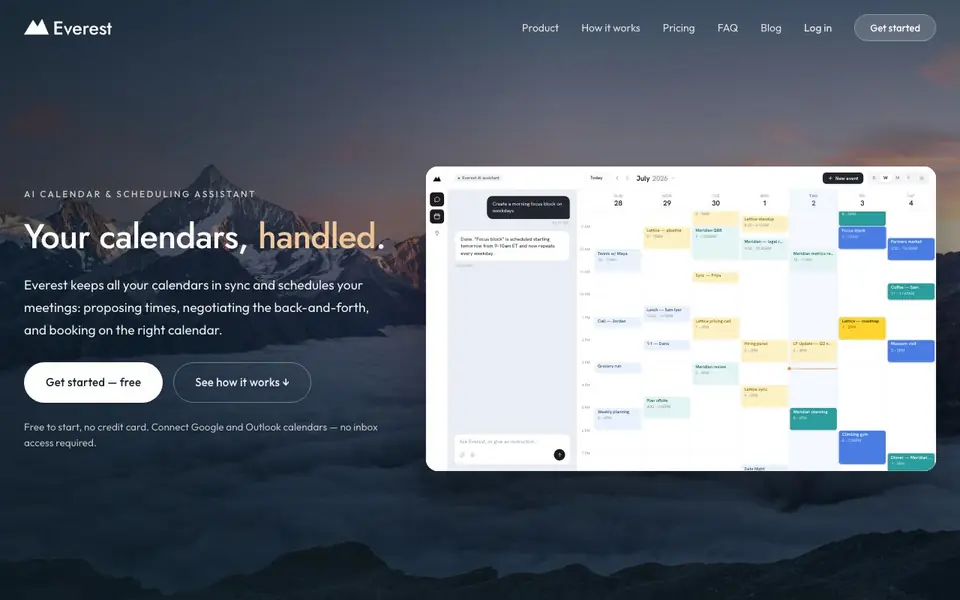
Everest suits people juggling multiple calendars—like freelancers, consultants, or agency owners—who want to stop manual scheduling. It also offers a unified calendar view to see everything in one place. The site mentions it's free to start with no credit card, and it remembers people you schedule with for faster future bookings.
Wizardlyv10.1.8 features
- Email-based scheduling: CC Everest on any thread and it proposes times and books meetings for you.
- Multi-calendar sync: Connects Google and Outlook, mirroring busy blocks so you're never double-booked.
- Unified calendar view: See personal, work, and client calendars in one place with day, week, month, or agenda views.
- Automatic follow-ups: Everest nudges contacts who haven't replied and reschedules when conflicts arise.
- Context memory: Remembers names, emails, and time zones of people you schedule with for future bookings.
What you can do with Wizardlyv10.1.8
- Schedule client calls without the back-and-forth email ping-pong.
- Keep multiple work calendars in sync to avoid double-booking.
- Propose meeting times that work across all your calendars automatically.
- Let Everest follow up with contacts who haven't confirmed a time.
How to get started with Wizardlyv10.1.8
- Connect your Google and Outlook calendars to Everest.
- CC Everest's email address on any scheduling email thread.
- Let Everest propose times, negotiate, and book the meeting on the right calendar.
Tips for better results with Wizardlyv10.1.8
- CC Everest on every scheduling thread from the start, even simple ones, so it learns your contacts' preferences and speeds up future booking suggestions.
- Connect all your Google and Outlook calendars before your first request, then verify Everest reads free/busy across each one to avoid proposing times that conflict.
- Use the unified calendar view daily to spot overlaps early, and manually move events to the right calendar when Everest books to a default you dislike.
- When a contact goes quiet, let Everest follow up automatically instead of emailing yourself, but check its proposed times against your own availability first.
- checks
Wizardlyv10.1.8 pricing
Wizardlyv10.1.8 has a free way to start, with paid plans for heavier use. Check everest.ag for current limits and prices.
What to check before you rely on Wizardlyv10.1.8
- Check whether the freemium plan includes unlimited scheduling threads or if it caps how many meetings you can book per month before you rely on it for client work.
- Verify that Everest only sends scheduling messages and never reads your inbox, as the site states, before using it on threads with sensitive client details.
- Confirm that the unified calendar view and multi-calendar sync work with your specific Outlook account type, since the site does not list all supported configurations.
Who Wizardlyv10.1.8 is for
Wizardlyv10.1.8 suits freelancers, consultants, agency owners and busy professionals. If that is not you, the AI agents below may fit better.
Similar tools compared with Wizardlyv10.1.8
| Tool | What it is | Pricing |
|---|---|---|
| Wizardlyv10.1.8 | AI scheduling assistant for calendars | Freemium |
| n8n | AI workflow automation platform | Freemium |
| Lindy | AI teammate for team workflows | Freemium |
| Zapier | AI workflow and agent orchestration platform | Freemium |
| LM Studio | Local AI agent for work and code | See website |
Wizardlyv10.1.8 FAQ
How does Everest schedule meetings?
You CC Everest's email on a thread. It reads availability across your connected calendars, proposes times to the other person, and books once they agree. It also sends invites and handles rescheduling.
Is Everest free to use?
The site says it's free to start with no credit card required. It doesn't specify if there are paid plans, so check the pricing page for details.
Which calendars does Everest support?
Everest connects Google Calendar and Microsoft 365 (Outlook). It syncs availability across all connected accounts and mirrors busy blocks so you don't double-book.
Can Everest read my inbox?
No. Everest only acts on threads you CC it into and only sends short scheduling messages. It doesn't have inbox access, so it can't read your other emails.
Does Wizardlyv10.1.8 work on mobile devices or only on desktop?
Wizardlyv10.1.8 is an email-based assistant, so you can use it from any device where you can send and receive email. The website does not mention a dedicated mobile app or desktop software. Check the official site for any updates on platform support.
What can Wizardlyv10.1.8 export or integrate with beyond Google and Outlook calendars?
Wizardlyv10.1.8 connects to Google and Outlook calendars for scheduling and offers a unified calendar view. The website does not mention exporting data or integrations with other apps like Slack or Zoom. For specifics, review the product documentation or contact support.
Does Wizardlyv10.1.8 require an account or credit card to start using it?
Wizardlyv10.1.8 is free to start and does not require a credit card. You need to connect your Google or Outlook calendars and add its email to your threads. The site does not specify if a paid plan exists beyond the free tier, so check pricing details for more.


